
Check and manage plug-ins
After you install the desktop app, plug-ins for Premiere Pro, After Effects, DaVinci Resolve or Final Cut Pro are usually installed automatically. Day to day, open your editing app and check that LmBox Bridge is already connected. Open Plug-in manager only if the status looks wrong, or if you need to update or reinstall. To install the app first, see Install the desktop app.
If you update, reinstall or remove a plug-in in the manager, fully quit and reopen your editing app. Changes apply only after that.
Check the connection first
- Open the editing app you normally use.
- Look at the editing-app icon in the LmBox Bridge sidebar: a colored highlight usually means it is connected; gray means it is not.
- Premiere Pro and After Effects usually do not need you to open an extension panel by hand. DaVinci Resolve and Final Cut Pro need you to open the LmBox Bridge panel inside the app — see Getting connected.
If it is already connected, you can start working. You do not need to click Install.
Video demo
The same video as the getting started guide (narrated in Chinese). This page starts the player at 01:01 (until about 01:51). The video may still show older manual install steps; in the current app, check the connection first. Connecting DaVinci Resolve and Final Cut Pro is in this part too.
Open the plug-in manager (only for checks or updates)
- In LmBox Bridge, hover over in the left sidebar. Open the menu next to it.
- Choose at the top.
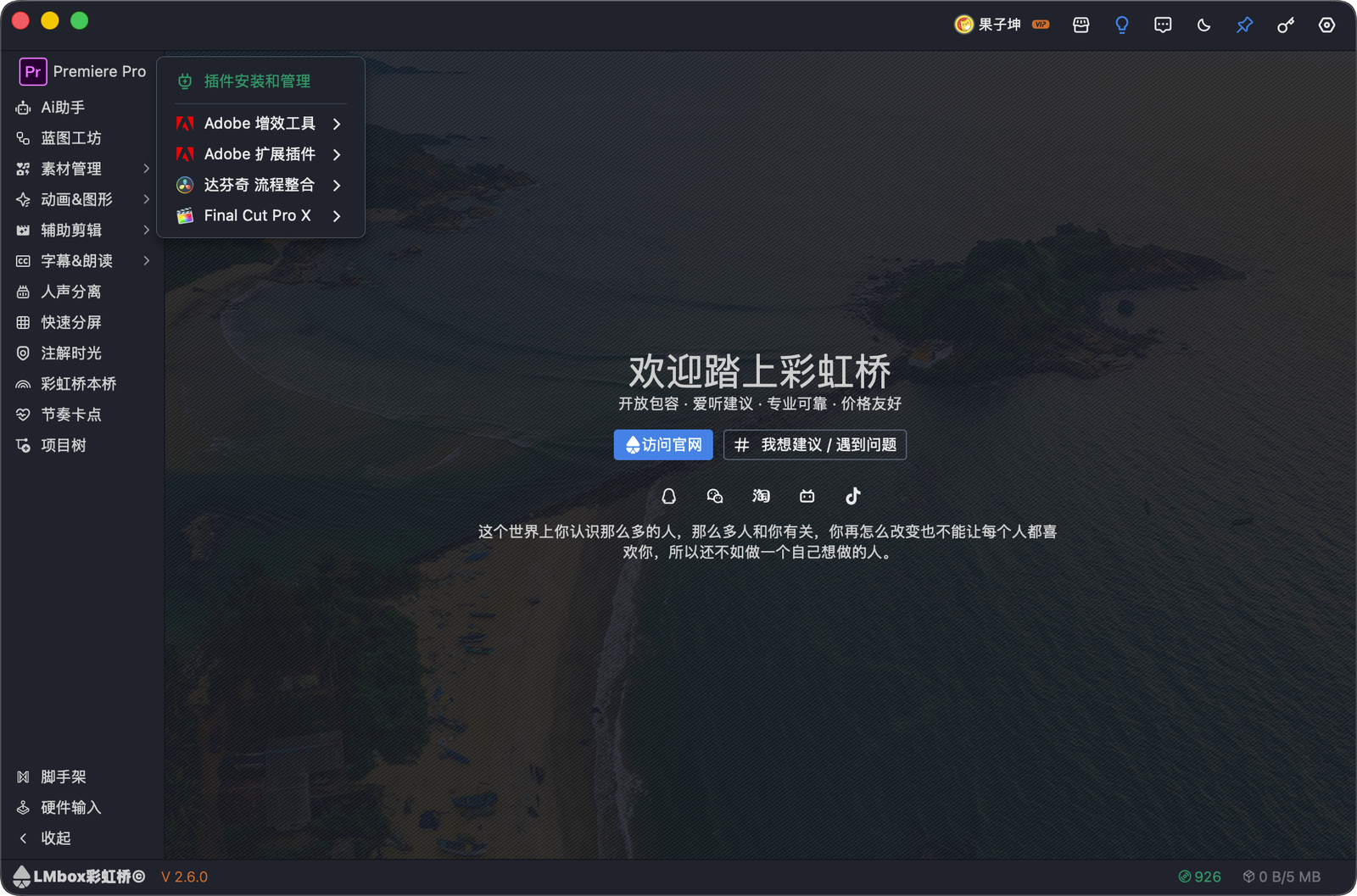
Figure: the dropdown next to the editing-app icon in the left sidebar; Plug-in manager is at the top. The screenshot shows the Chinese interface.
Each row is one plug-in set (Adobe extension, Adobe plug-in, DaVinci Resolve, Final Cut Pro and so on). A row shows its state: Not installed, Installed, or Update available.
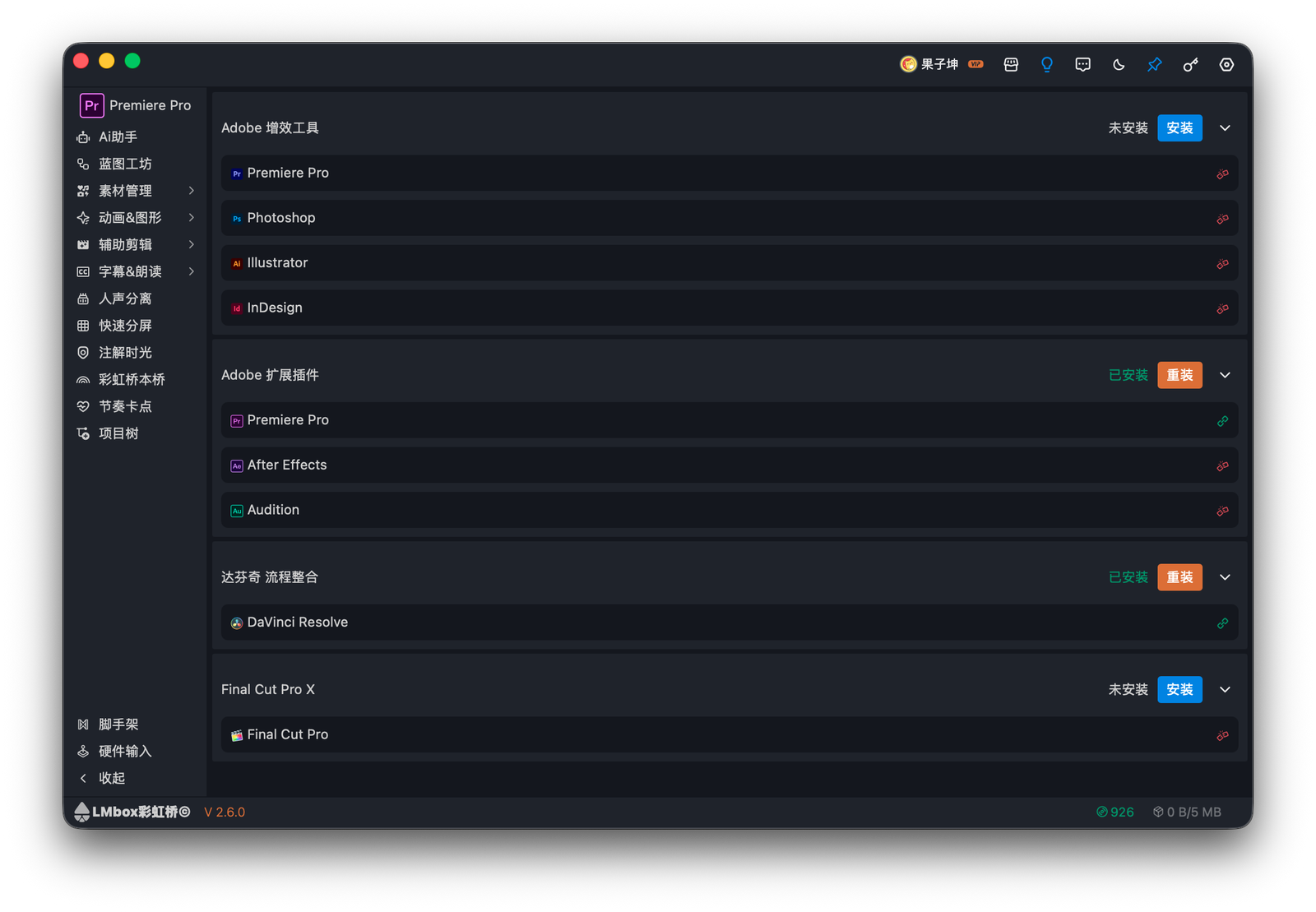
Figure: each plug-in set row with Install / Update / Reinstall. The screenshot shows the Chinese interface.
Install
The current app usually installs plug-ins for you, so do not click Install first. Check the connection above.
Only if the row says Not installed, or automatic install did not finish, click Install on that row. Then fully quit and reopen your editing app.
Before you install the DaVinci Resolve plug-in, fully quit DaVinci Resolve. On Mac, if the app still cannot write the folder, confirm in the password prompt.
| Plug-in set | After installing |
|---|---|
| Adobe extension (Premiere Pro, After Effects, Audition) | You do not need to open the extension panel. It loads automatically while the app is running. |
| Adobe plug-in (Premiere Pro and others) | You do not need to open LmBox Bridge inside the plug-in. It loads automatically. |
| DaVinci Resolve | Open the plug-in inside DaVinci Resolve yourself. See Getting connected. |
| Final Cut Pro | Open the workflow plug-in inside Final Cut Pro. See Getting connected. |
Update
When a row says Update available, the main button is Update. After you update, fully quit and reopen your editing app.
Click the small arrow on the right of the row to see the installed version and the version you can update to.
Reinstall
When a plug-in is installed and there is no update, the main button is Reinstall. Use it if the install failed, the plug-in will not open, or you see a package error. Close your editing app first, then click Reinstall.
Uninstall
- Click the small arrow on the right of the row.
- Under the version note, click Uninstall.
- Fully quit and reopen your editing app.
Go back to an older version
To return to an older version:
- Click the small arrow on the right of the row.
- The menu has "Go back to an older version" and the versions you can use (for example
V1.2.3). - Pick the version you want. Then fully quit and reopen your editing app.
Getting connected
LmBox Bridge connects to one editing app at a time. The name next to in the sidebar shows which one.
- Connected: the icon is in color.
- Not connected: the icon is gray.
| Editing app | How it connects |
|---|---|
| , | You do not need to open the plug-in. Keep Premiere Pro or After Effects running and it usually connects on its own. |
| In DaVinci Resolve, choose Workspace → Workflow Integrations, then click . Keep the panel open. | |
| At the top left of Final Cut Pro, open the list of workflow plug-ins and click . Keep the panel open. |
If it says not connected, check that the plug-in is installed and that you restarted your editing app. In DaVinci Resolve, check that the panel is open under Workspace → Workflow Integrations. In Final Cut Pro, check that you opened it from the workflow plug-ins list. If it still fails, quit LmBox Bridge fully and open it again, or click to sync the state (offered on some Lab pages).
Choose which editing app to use
- In the left sidebar, open the menu next to the editing app icon.
- Pick a family first, then the plug-in. Only installed plug-ins can be picked:
- Adobe extension: ,
- Adobe plug-in: , , ,
- DaVinci Resolve:
- Final Cut Pro (Mac only):
- Jianying: you can select it directly. When Jianying Pro is in front, the target switches to it. This page does not list Jianying, because there is nothing to install.
- By default, LmBox Bridge follows the editing app you are using. You can switch by hand at any time.
Auto-switch (on by default)
If you want to switch only by hand, right-click the icon in the system tray (Windows taskbar or Mac menu bar) and uncheck Auto-switch target plug-in. Check it again when you need it.
If a plug-in is not installed, LmBox Bridge sends you to this page. Install it, restart your editing app, then pick it again.
Release history
3.1.0You can switch to Jianying in the top bar. When Jianying Pro is in front, it is selected automatically. Plugin install does not list Jianying, because there is nothing to install.2.7.0When you install the DaVinci Resolve extension on Mac while DaVinci Resolve is still running, the app asks you to quit it first. If the folder cannot be written, a password prompt from your Mac appears.