
Redeem a membership code
The redeem entry is not in the same place in the desktop app and in the older extension. Follow the steps for the product you use. Before you redeem, sign up and log in, and stay online.
Desktop app
Open LmBox Bridge → User center → find "Redeem code" → enter the code and click "Confirm".
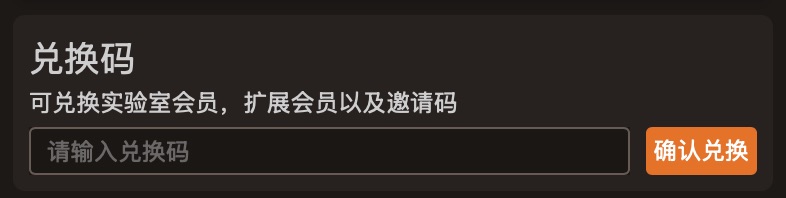
You can redeem Lab memberships, extension memberships and invite codes. For a full-pack membership, redeem first, then add your asset packs as described in Asset packs in the desktop app.
For the kinds of membership, see Membership.
Older extension
The steps below apply only to the standalone extension inside Premiere Pro / After Effects / DaVinci Resolve. They are not for the desktop app's user center.
Note
Stay online
Install the latest version of the extension
Have a valid membership redeem code
Sign up and log in
Sign up and log in
Your account keeps the redeem record, so you can skip activating again when you change computers.
Click at the far right of the extension toolbar to open the extension center, then switch to to sign up and log in.
Redeem a membership
- Click at the far right of the extension toolbar to open the extension center
- Switch to and find the Redeem code box
- Enter the code and click Redeem
For a full-pack membership, activate the extension pack after you redeem.
TIP
If it still asks for an activation code after you redeem, or Lab does not work, "Sign out of this device" first and log in again. The extension then syncs the status.