
Pr toolkit
This is a multi-tool collection, simplified from Lab features and bundled for a faster workflow. LmBox Bridge has offered it since V3.1; see the extension release notes.
Click the button on the tool shelf of the LmBox Bridge main panel.
Motion design express
Motion design express is a simplified version of the Lab tool Motion design (desktop app). It creates animations quickly from presets you have saved. For the older flow inside the extension, see the Motion design extension guide (Chinese only). 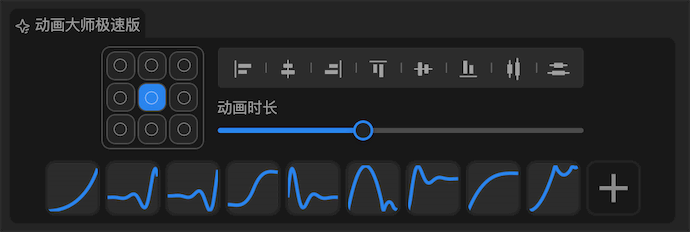
Features
Anchor pointSets the focal point of the animation. It matters for animations with rotation and scale, because it directly shapes the path and behavior.Align and distributeAligns and distributes clips on the tracks in Premiere Pro. Premiere has gone more than ten years without this tool. Now you have it.DurationSets how long the animation preset runs.Preset curvesEvery preset is shown as an animation curve; hover to see its details.Add presetClick the "+" button to add presets in Motion design.
Translate & replace
A handy tool simplified from the Lab feature Translate & replace. It renames and translates sequences, clips and other items in your project.
Note
It is still evolving quickly, but it is ready to use, and you are welcome to join the beta.
For your first use, we strongly recommend importing the local dictionary of common professional terms I put together.
Setup
⚠️ Before your first use, set up your Baidu Translate App ID and dictionary. Read Dictionary setup and download.
Features
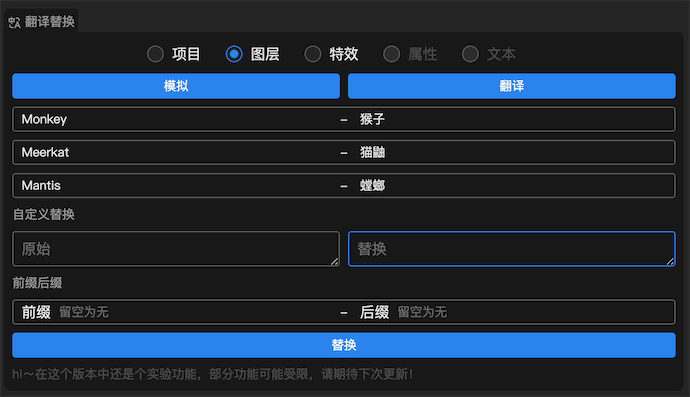
Target typeTargets are picked in two ways depending on the ticked types: with a selection or without. If something is selected, the selection is the target; with nothing selected, everything becomes the target. We suggest you select the targets by hand each time: it is faster and uses fewer API characters.Translate and simulateTranslateruns silently: nothing is shown, and matching rules are applied automatically to translate and replace.Simulateis the one we recommend, especially early on when you have no local dictionary yet. It shows the matched terms so you can edit them; once you clickReplaceat the bottom, the translation is applied and this round's dictionary mappings are saved locally.
Auto replaceIn simulate mode, shows the matched terms. Terms joined with "-" come from your local dictionary; terms joined with "*" come from the online translation.Custom replaceIf a term is not matched, write it by hand. Each line is a new term, with no limit, and regular expressions are supported.Prefix and suffixAdds a prefix and suffix to the selected target type.ReplaceApplies the simulated result to translate and replace in your project.
Video demo
Project tree
A handy tool simplified from the Lab feature Project folders. It creates project folders, with support for new folders, hierarchies, reading the project, dragging, auto-sorting and more.
Tip
This is an express tool. To keep it simple, change or add folders in Project folders and save them there.
Features
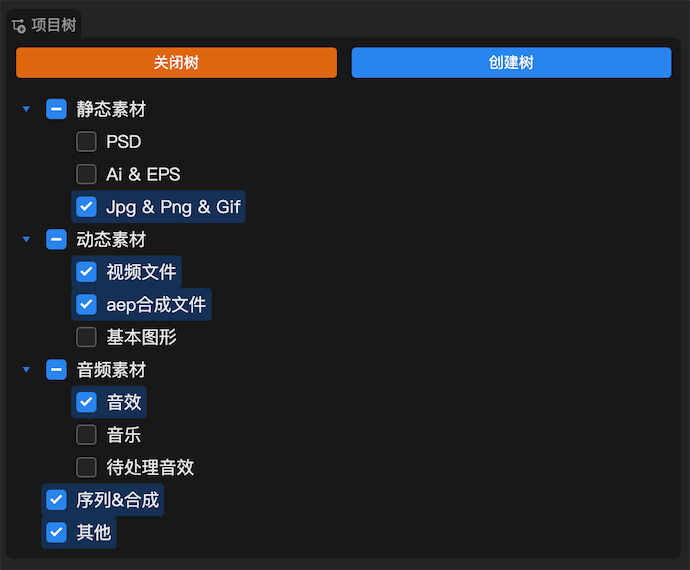
View tree and close treeReads, previews and closes the project tree saved on your computer.Create treeCreates the activated folders in the Project panel.Tree structureTick to activate folders for creation, and drag folders to reorder them.