
How to use DaVinci Resolve 21.1's official MCP? The Setup list shows only a few assistants, but any agent can connect in one sentence
Step-by-step guide
For Rhythm edits (placing markers), follow Rhythm edits (Lab guide). The official DaVinci Resolve MCP is not a LmBox Bridge feature; what it can do depends on your version, so check the Blackmagic what's new page. This post is the illustrated companion to the September 2026 public class. The screenshots show the Chinese interface.
Hi, I am KernelKun. DaVinci Resolve 21.1 opens up an official MCP, which is said to let you edit by talking. Many people open Settings, see only a couple of brands, and decide their own agent has no chance. It is not so: the interface is general. Even if you cannot find the docs, drag the MCP entry from inside the app package into your agent, let it connect and check health. The official "highlight" demos need a model that can see the picture. I keep it simpler: place beat markers with LmBox Bridge first, then say one sentence and lay the pictures along the markers. If the first pass is off, the agent re-checks. The Edit and Deliver pages are fine to play with; the Color page is not opened up officially yet.
Video tutorial
Public class demo: connecting the official MCP, using your own agent, and laying clips along beat markers. Open on Bilibili
What you will learn
- What the official DaVinci Resolve MCP is, and how it differs from the assistant list in Settings
- How to copy one prompt and add the MCP service
- Which editing prompt to use for laying clips along beat markers
- Why the official MCP has only 14 tools, and how that differs from community "hundreds of fine-grained tools"
- How to choose between the official highlights and beat-marker editing
- Which pages to try, and why not to expect color grading yet
What is the official DaVinci Resolve MCP
The official DaVinci Resolve MCP is the service entry that 21.1 exposes to agents: you give instructions in everyday speech, and the agent drives organizing and editing operations in the current project. It is not a LmBox Bridge page. It is a channel that DaVinci Resolve opened itself.
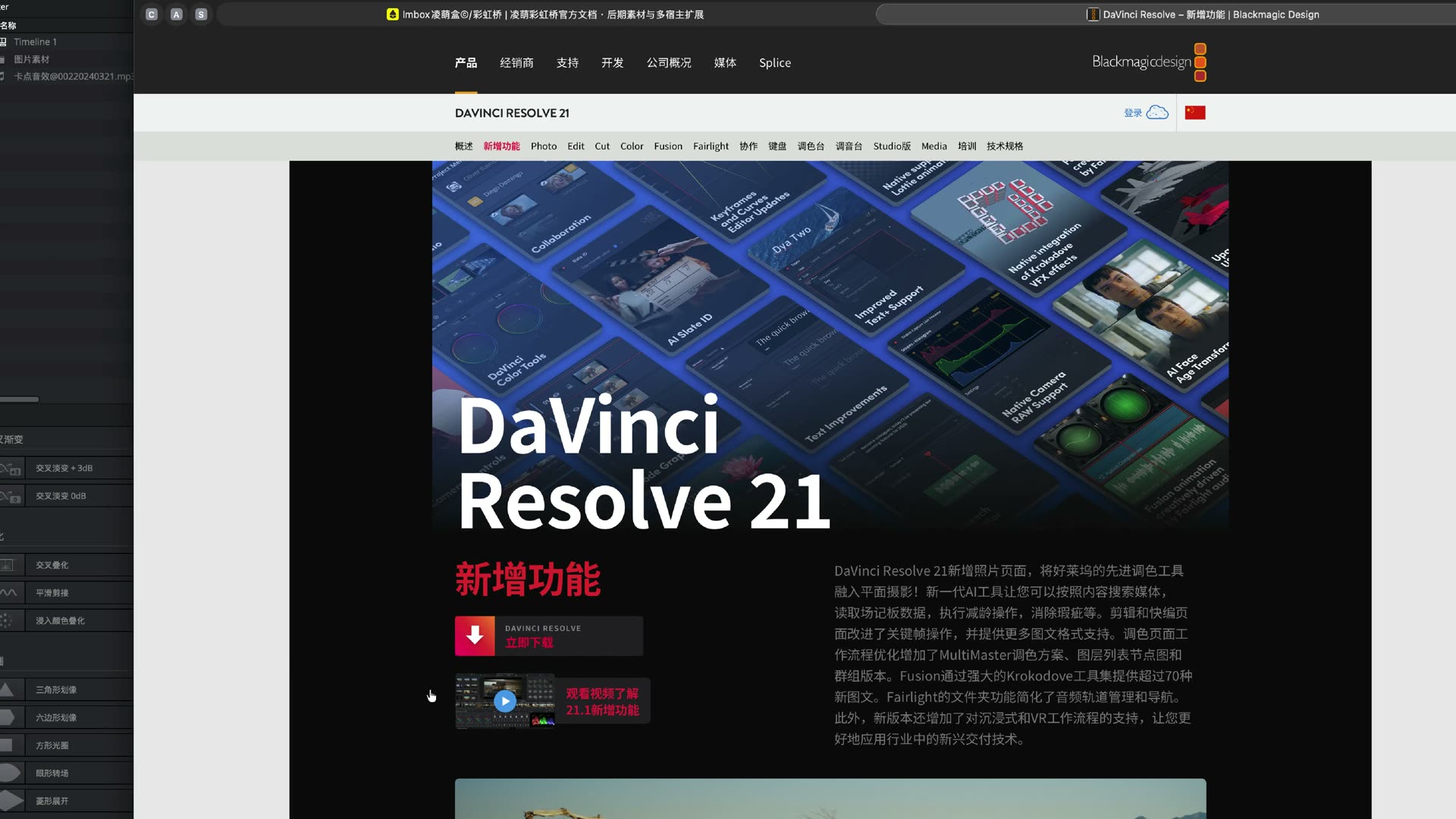
Figure: The Blackmagic page for DaVinci Resolve 21 new features. MCP is listed in the same wave as many AI features.
In plain words: you used to click menus; now you can let an agent "look at the project and change the timeline as you describe". The official examples are often pulling highlights from a long video, organizing footage and batch output. This test takes another, more hands-on route — place the markers first, then lay the pictures.
The Setup list shows only a few assistants. What now
Open DaVinci Resolve. In the File menu you can see Setup AI Assistants. The brands listed there are only a few.
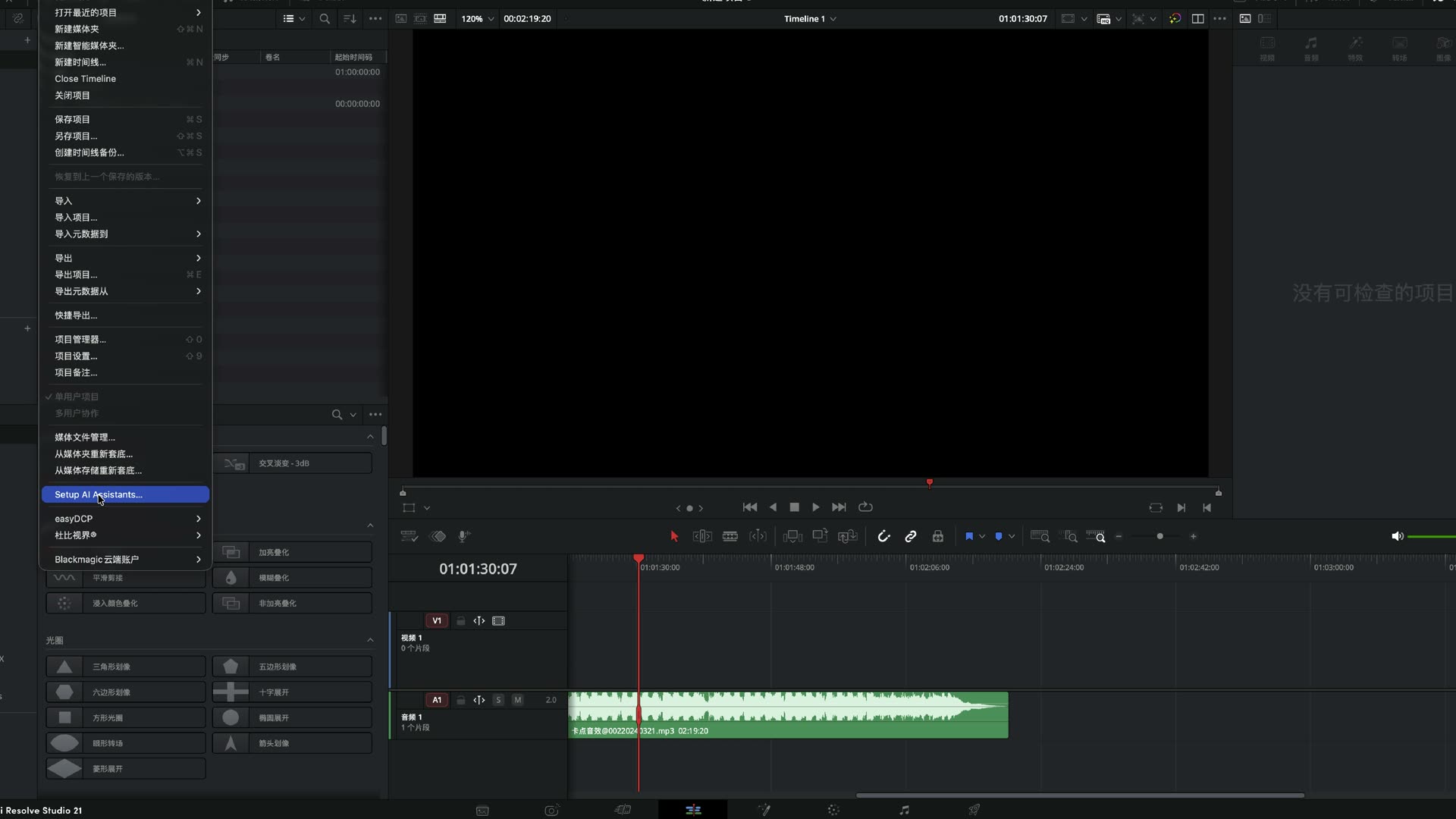
Figure: Setup AI Assistants in the File menu. A short list does not mean the MCP channel is only for those few.
MCP is general for agents: any agent or client that can use MCP is worth a try. Do not stop at this step.
| What you see | What it really means |
|---|---|
| The assistant brands in Settings | Officially named, wizard-style setup |
| The MCP entry inside the app package | A general channel you can hand to the agent you already use |
| LmBox Bridge "Rhythm edits" | Only places markers on the timeline; it does not replace MCP |
How to use the DaVinci Resolve 21.1 MCP
Even without long official docs it is fine. On Mac, right-click the app and choose Show Package Contents; on Windows, look in the install folder. Find the service entry named Resolve MCP.
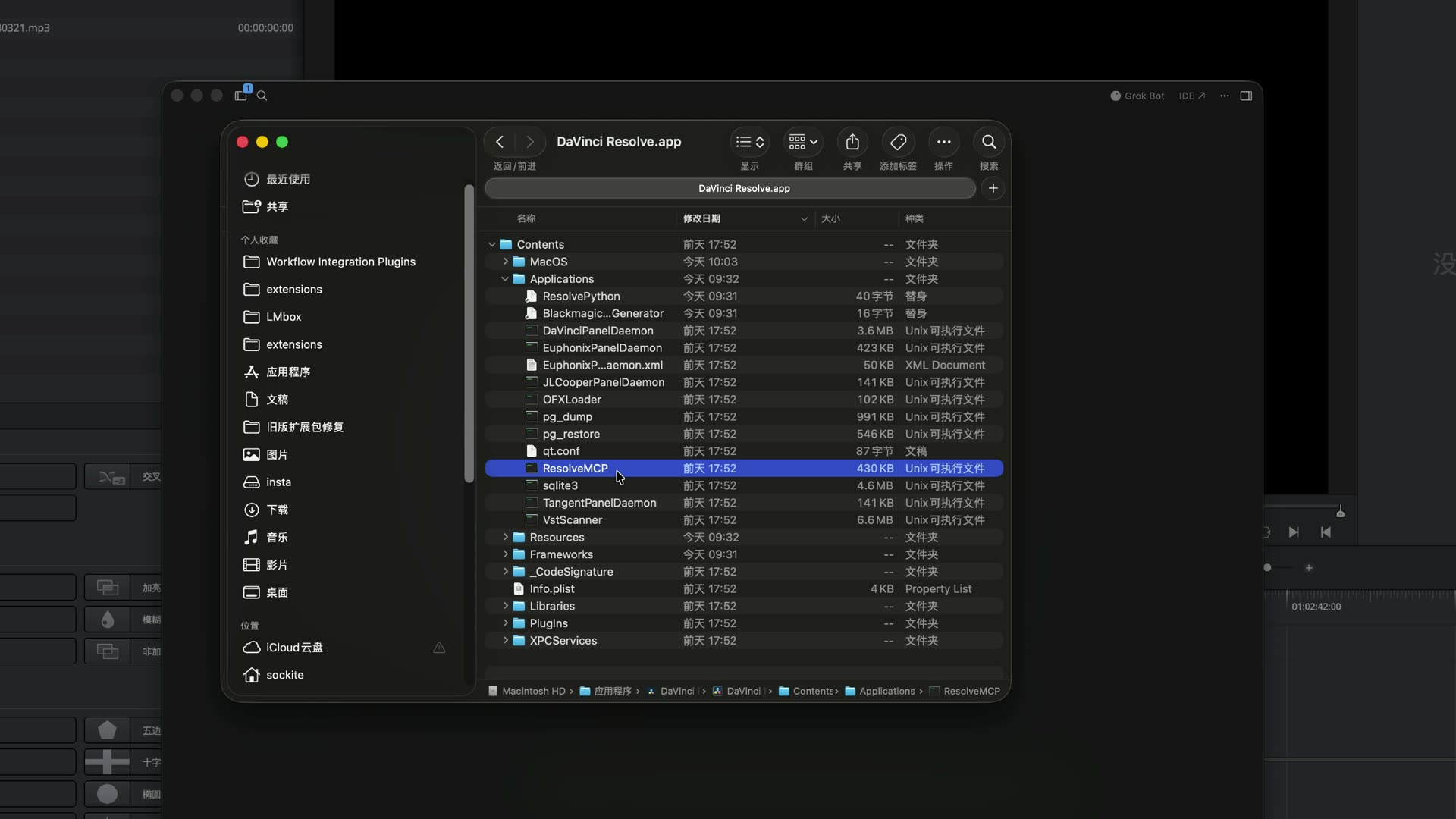
Figure: The MCP service entry under Contents → Applications in the DaVinci Resolve package. On Windows, look for the same entry in the install folder.
Drag it into the agent window (or paste the path into the chat). The Mac default entry is below. On Windows, replace what follows @ with the ResolveMCP in your install folder.
Connect prompt (copy and send to your agent)
@/Applications/DaVinci Resolve/DaVinci Resolve.app/Contents/Applications/ResolveMCP
This is the MCP service entry for DaVinci Resolve. Run a smoke scan, connect, configure the MCP service, check its health, and finally list all the tools.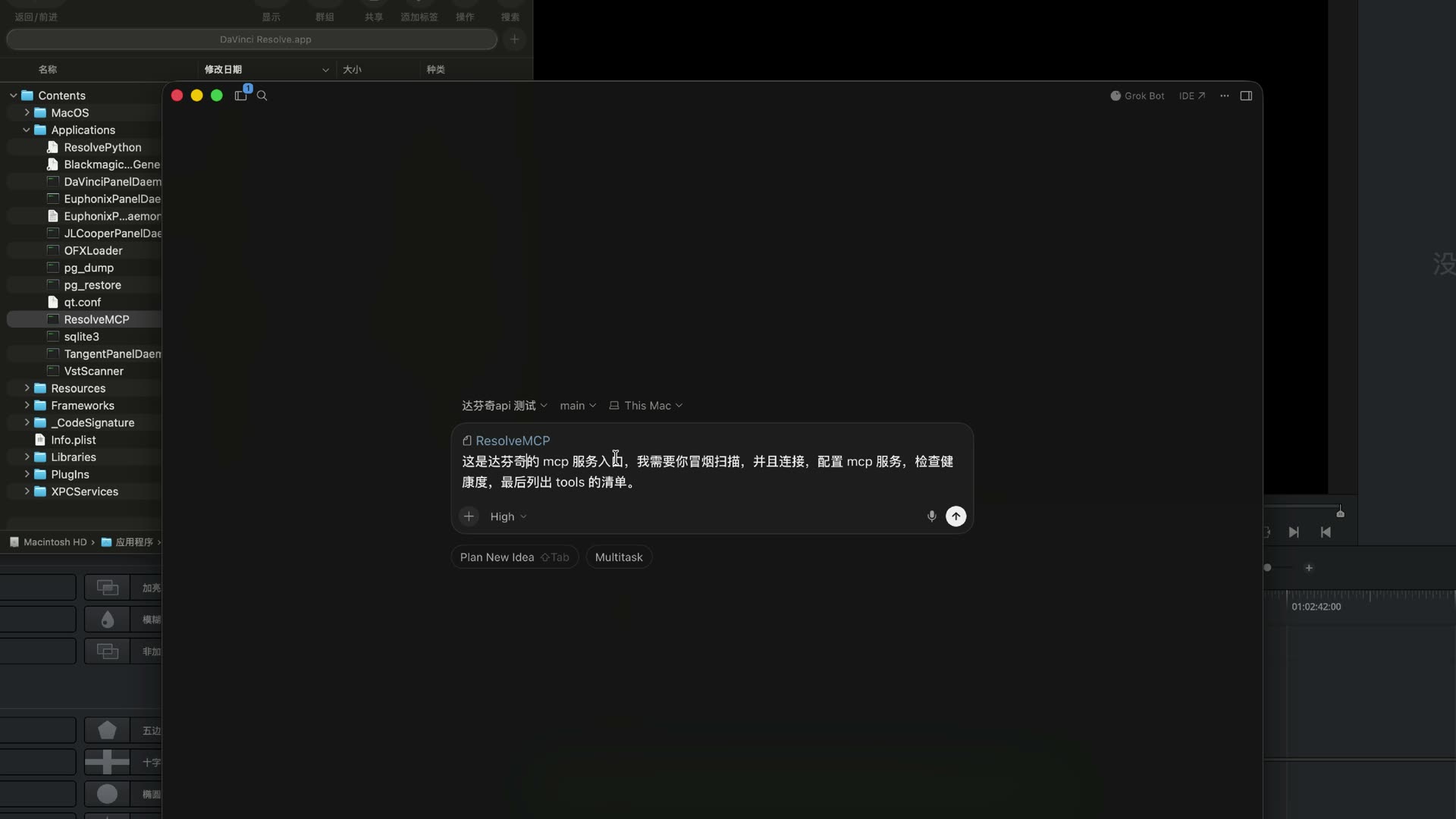
Figure: After you drag the entry in, use the prompt above so it scans, connects, checks health and lists the tools. Each app is configured differently, and the agent writes that part itself.
The official MCP has 14 tools, and the core is running scripts
The official one is a thin wrapper. What can really change the timeline is mainly run_script / run_script_unsafe (the agent writes a script on the spot and hands it to DaVinci Resolve to run). Next to it are the API reference, docs, and LUT / DCTL tools.
It is not the community kind with hundreds of fine-grained interfaces (one tool per editing action). After you connect you will see about 14 items. That looks small because the editing ability is gathered in the "run script" layer.
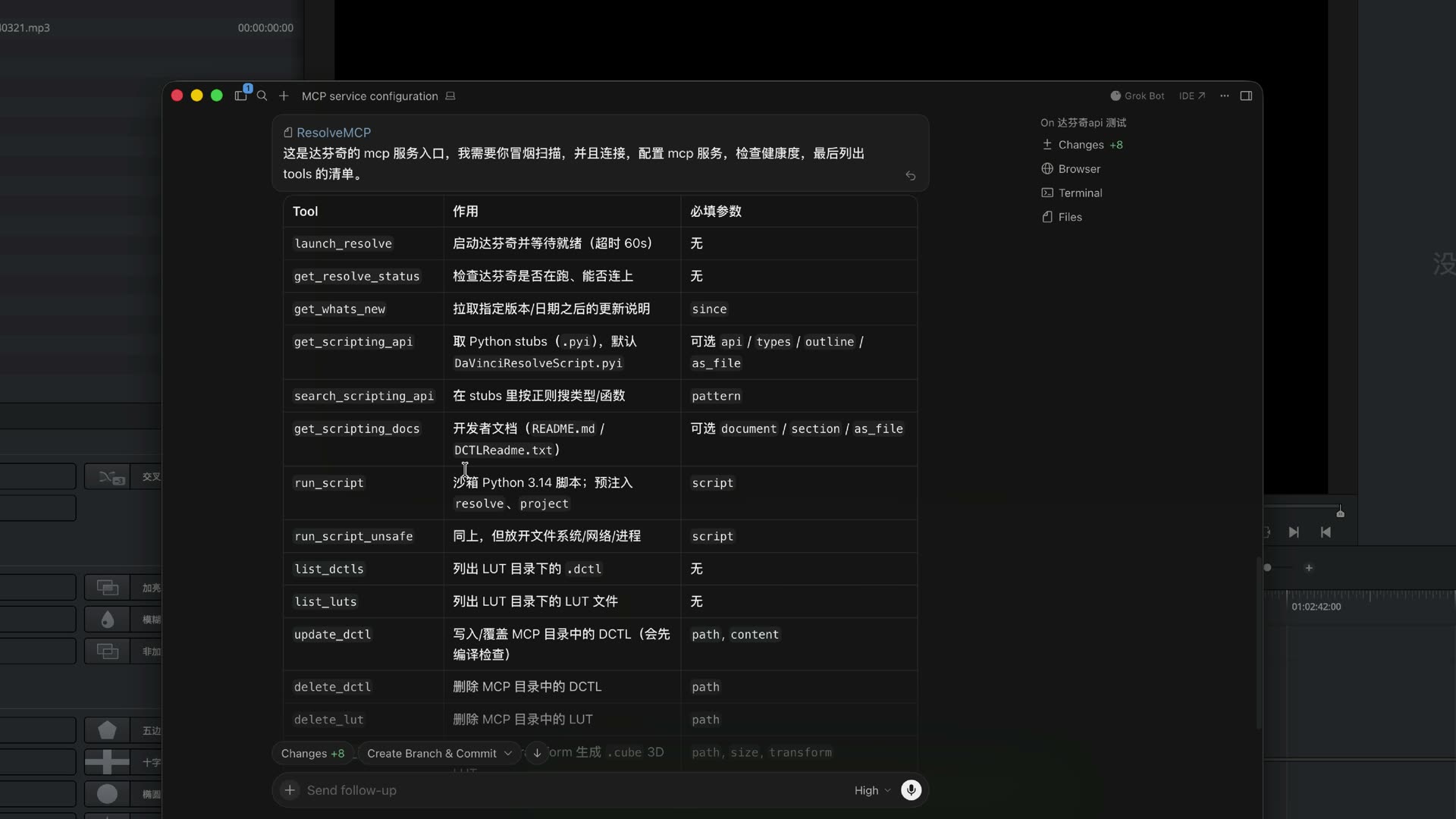
Figure: The official tool table listed after the health check passes. For everyday editing, watch run_script.
| Tool | What it does | Required parameter |
|---|---|---|
launch_resolve | Starts DaVinci Resolve and waits until ready (60 s timeout) | none |
get_resolve_status | Checks whether DaVinci Resolve is running and reachable | none |
get_whats_new | Fetches the release notes after a given version/date | since |
get_scripting_api | Gets the Python stubs (.pyi), default DaVinciResolveScript.pyi | optional api / types / outline / as_file |
search_scripting_api | Searches types/functions in the stubs with a regex | pattern |
get_scripting_docs | Developer docs (README.md / DCTLReadme.txt) | optional document / section / as_file |
run_script | Sandboxed Python 3.14 script; resolve and project pre-injected | script |
run_script_unsafe | The same, with file system / network / process access opened up | script |
list_dctls | Lists .dctl files in the LUT folder | none |
list_luts | Lists LUT files in the LUT folder | none |
update_dctl | Writes/overwrites a DCTL in the MCP folder (compile-checked first) | path, content |
delete_dctl | Deletes a DCTL from the MCP folder | path |
delete_lut | Deletes a LUT from the MCP folder | path |
generate_lut | Generates a .cube 3D LUT from a Python transform | path, size, transform |
For everyday editing by talking: first confirm it can connect (get_resolve_status), then hand your request to run_script. run_script_unsafe has wider permissions, so use it only when you know what you are doing.
Official highlights or beat-marker editing: which to choose
The official demos love "highlight moments": cutting key points out of a long video. That kind of work usually needs a model that can see the picture and read captions. A plain chat model struggles.
An easier test:
- Open LmBox Bridge and connect the DaVinci Resolve extension
- In the sidebar open Rhythm edits and click Get from timeline
- If the music has no steady beat, use energy marks (do not force beat marks)
- Click Create markers to write them to the timeline
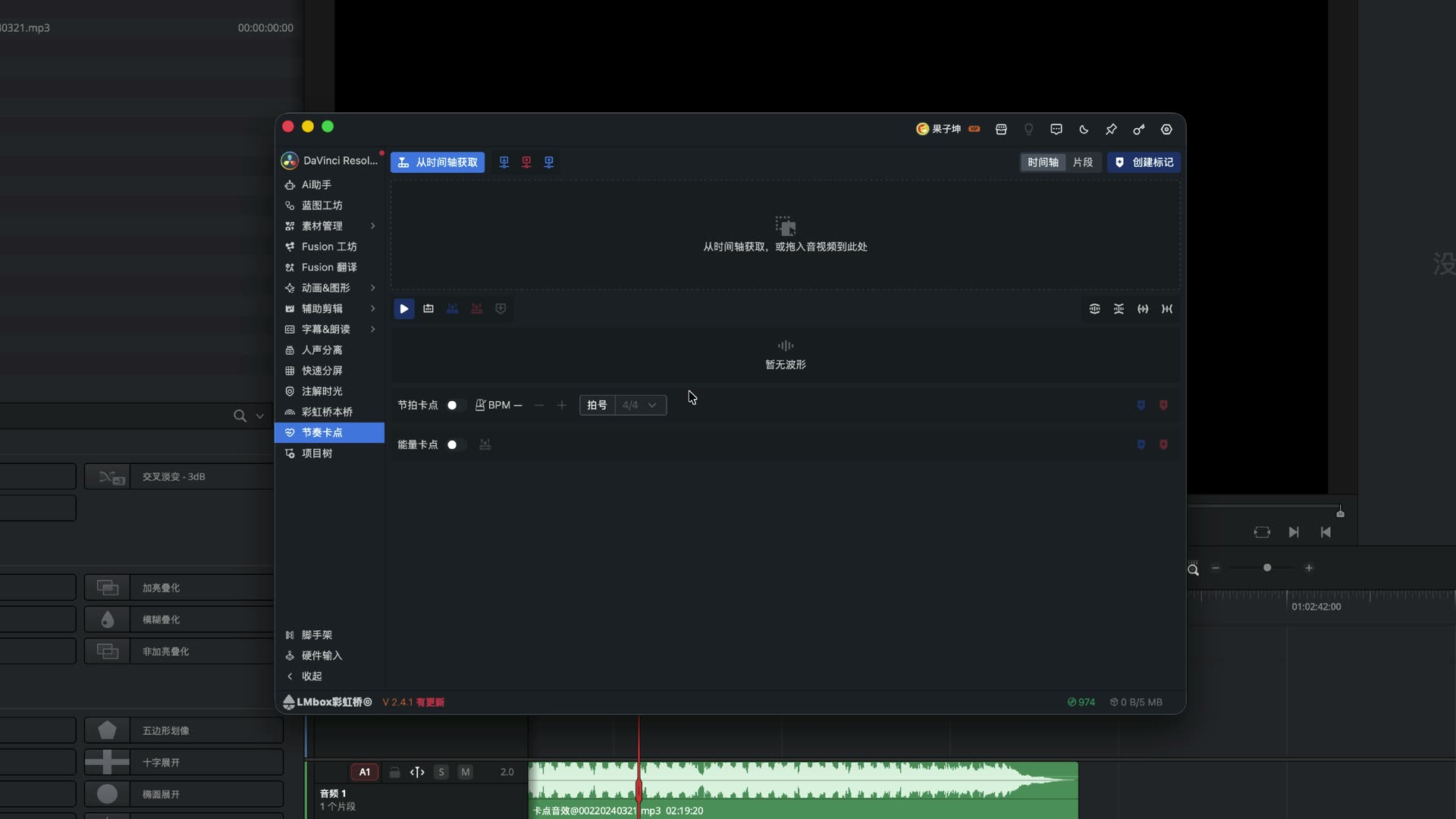
Figure: "Rhythm edits" in the sidebar. Get the audio from the timeline first; use beat marks or energy marks, or both.
For the screen steps, follow the Rhythm edits guide.
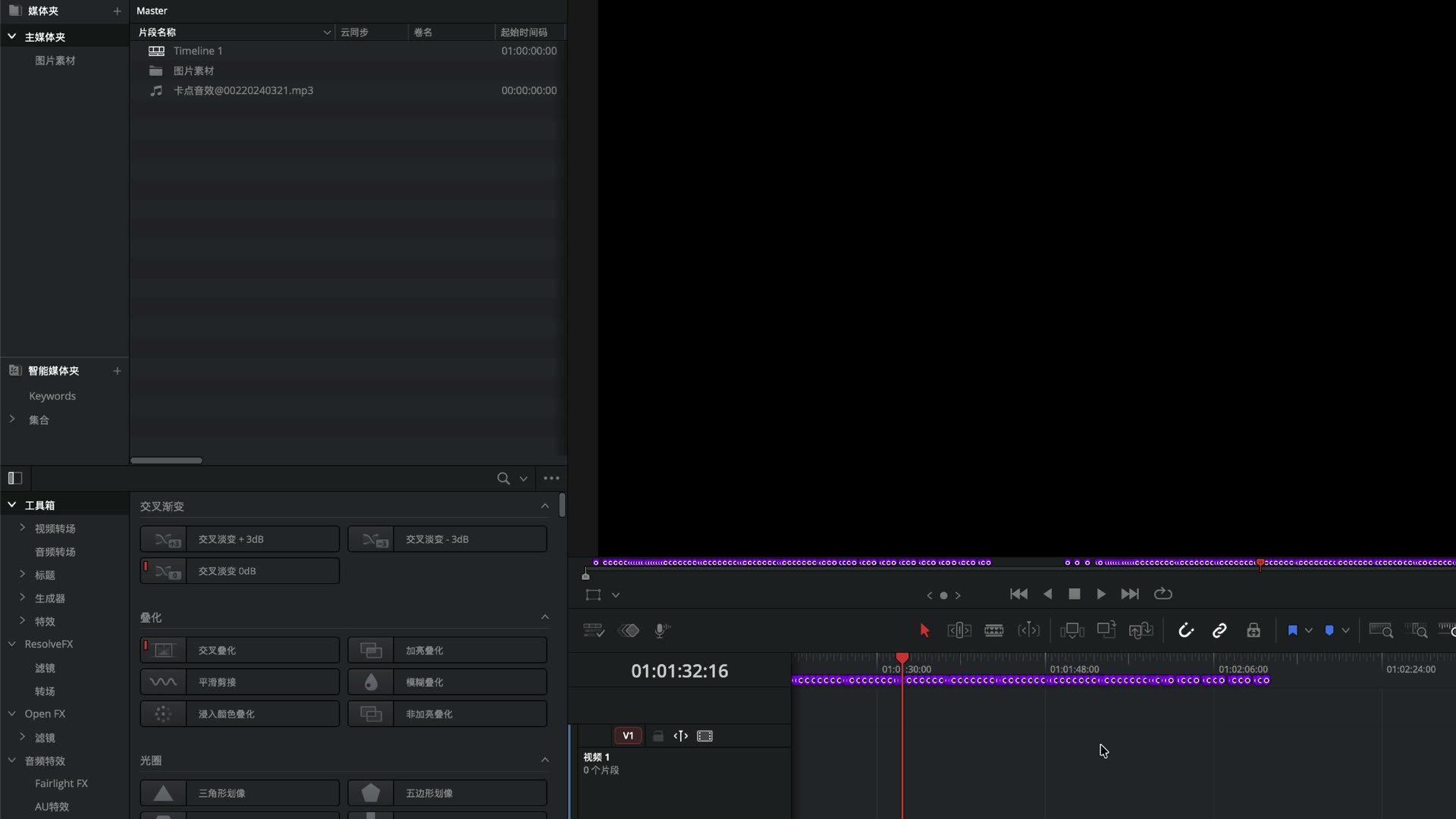
Figure: The markers are on the timeline now. Just prepare a folder such as "images" in the media pool.
Once the markers are placed and the MCP is connected, send the whole text below to the agent (change the folder name to match your media pool).
Editing prompt (lay clips along markers, copy as is)
The media pool has a folder called "images". Get the list of clips in it and the markers on the timeline. Use each marker as the in point of a clip and fill the track with the clips in random order, with each clip's out point at the next marker. Keep the picture continuous, so it looks like a beat-synced edit.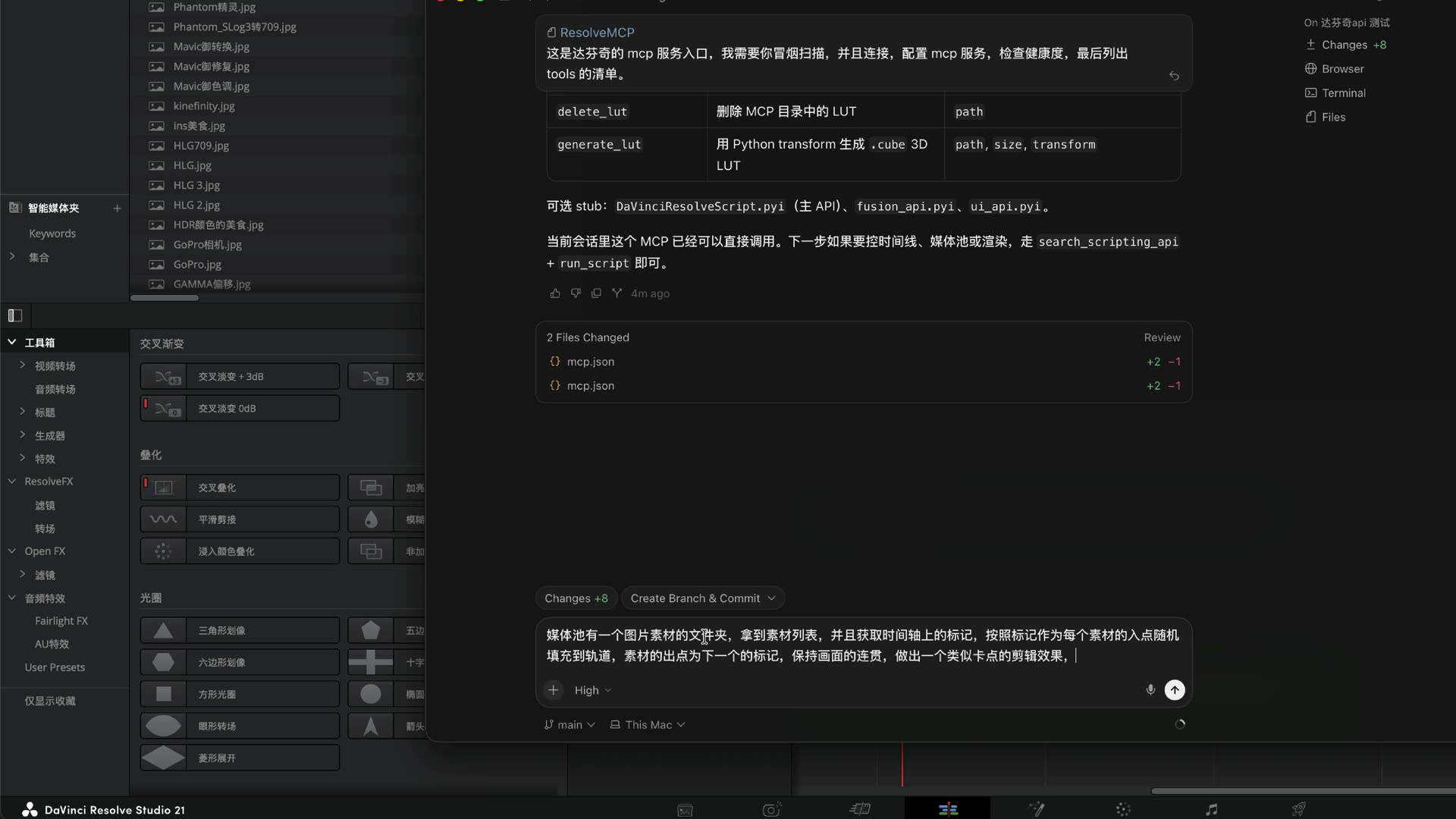
Figure: Use the description above to let it lay pictures at random along the markers. Saying it clearly beats piling on jargon.
What happens if the first pass is off
The first pass may not line up with the markers. Ask it to re-check and redo. In the test, the second pass finished the edit with roughly the right rhythm; how sparse it is depends on how you placed the markers beforehand.
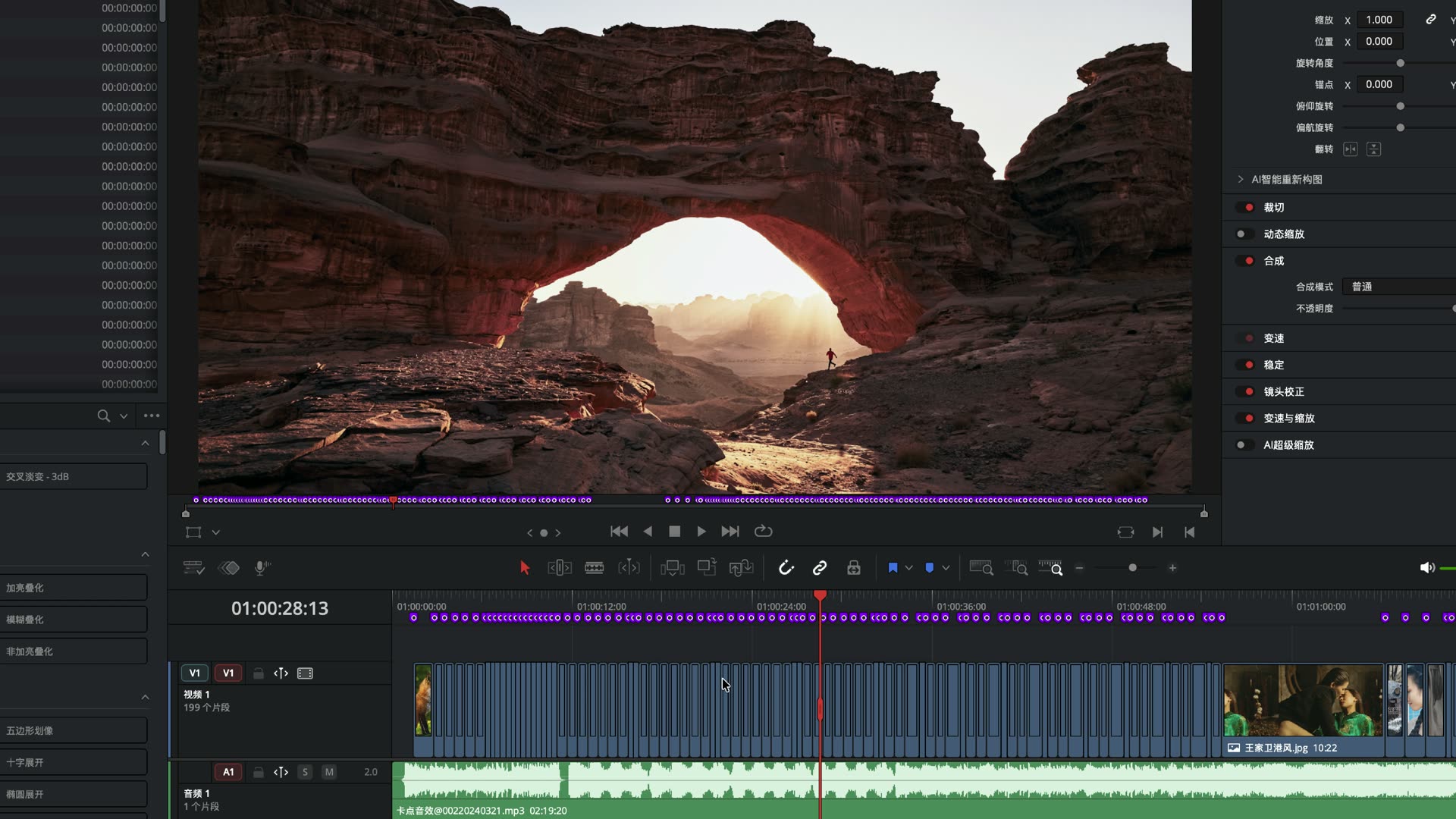
Figure: After the re-check, the video track is cut into many short clips that match the marker density. This is not a perfect one-click result; it is "it can finish, and you can adjust".
Ask it "how did you do that" and you will see it wrote a set of operations and handed them to DaVinci Resolve to run. You do not need to copy them by hand or read each line.
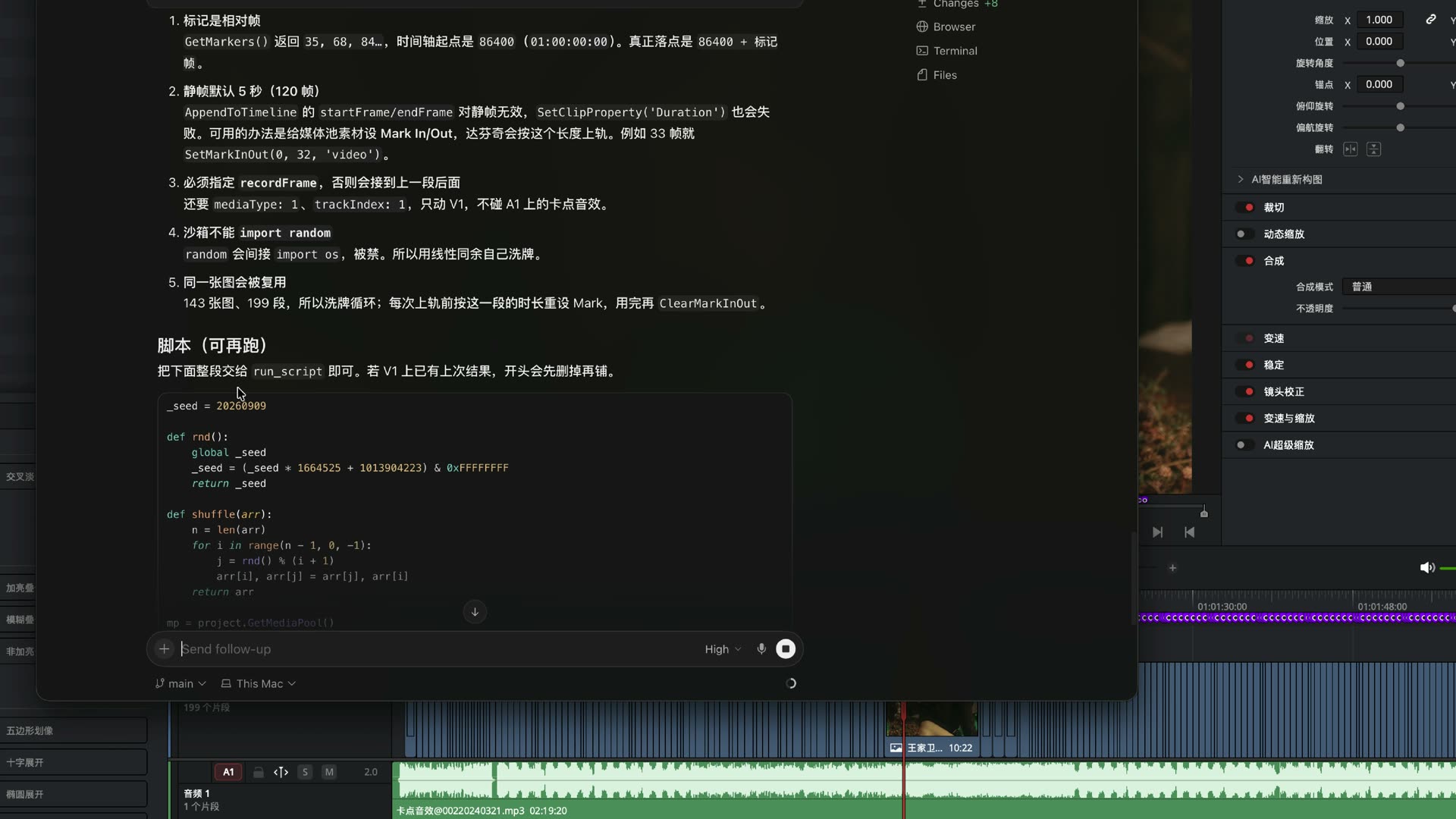
Figure: What connecting really means: the agent orchestrates on the spot and DaVinci Resolve executes.
How it works (simplified)
The official menu lists "assistant brands"; the MCP is the channel that lets an agent drive DaVinci Resolve. An incomplete brand list does not mean the channel is closed.
LmBox Bridge Rhythm edits does one thing you can touch: it writes beat or energy points as timeline / clip markers. Editing by talking still goes through the official MCP. Together they are steadier than asking a model to "watch the film and pull highlights" from the start.
Whether a page or a license is included depends on the notes of the DaVinci Resolve version you installed.
Can the DaVinci Resolve MCP grade color
The result: the Edit and Deliver pages are fine to try. The Color page is not exposed officially yet, so it is hard to use for now. Do not use color grading as the acceptance test yet.
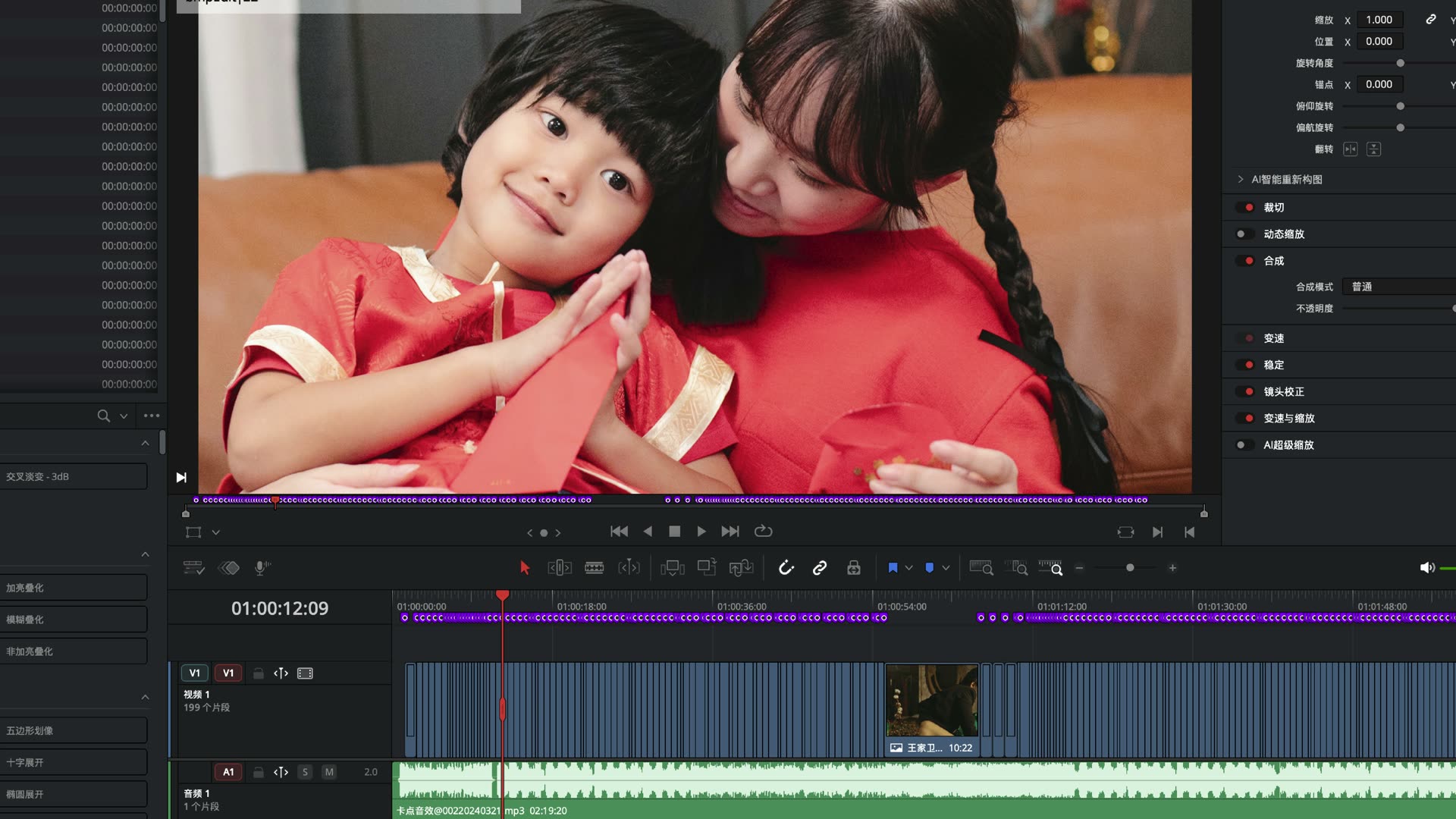
Figure: After laying clips, the preview is still on the Edit page. Keep grading by hand, or wait for the official side to open it up.
FAQ
What is the official DaVinci Resolve MCP?
The agent service entry in DaVinci Resolve 21.1. You describe what to do in language and it drives some operations in the current project.
How do I use the DaVinci Resolve 21.1 MCP?
Find the ResolveMCP entry, drag it into your agent, and use the connect prompt: smoke scan, connect, configure, check health, list tools. After that, give editing instructions by talking.
How is the official MCP different from the community one with hundreds of tools?
The official one is a thin wrapper with about 14 items, and the core is run_script. Community projects split into many fine-grained interfaces; that is not the same install path.
Can other agents use the DaVinci Resolve MCP?
Yes, give it a try. If a brand in the Setup list does not suit you, use the general MCP entry.
How is the DaVinci Resolve MCP different from the assistants in Settings?
The assistants in the list are officially named; MCP is the channel. The channel can connect the agent you already use.
Can the DaVinci Resolve MCP grade color?
In this test the Color page was not opened up. Editing and Deliver are fine to try first.
What does Rhythm edits do in automatic editing?
It places markers on the audio first. Then you send the "editing prompt" above to the agent: use a marker as the in point and the next marker as the out point, lay the pictures in the media pool at random, and make a beat-synced cut. The marker steps are in the Rhythm edits guide.
Who is it for?
People already on DaVinci Resolve 21.1 who want an agent to help lay tracks or do repetitive edits. It is not a one-click promise for people who cannot place markers or describe things in words.
Limits
- Highlight moments need a model that can see the picture; beat-synced editing can start by placing markers and then talking
- It is common for the first pass to be off, so ask it to re-check
- Do not write LmBox Bridge up as "the official MCP itself"
- Third-party community MCP packages are not the same path as this official entry: the official one has about 14 tools and runs scripts; the community kind has hundreds of fine-grained interfaces
Further reading
- Rhythm edits (guide) — get from the timeline, energy marks, create markers
- Lab features overview · Rhythm edits
- Install the desktop app
- DaVinci Resolve what's new (Blackmagic)