
LmBox Bridge media folders: how to add and remove local folders
Step-by-step guide
For the full capabilities of each media page, follow its own Lab guide. For audio preview, light editing and import after you add a library, read the companion blog post LmBox Bridge Sound library and the main guide Sound library. For the sidebar "Grouped / Scattered" switch, see Settings · Theme & appearance. The screenshots show the Chinese interface.
Hi, I am KernelKun. When your footage is spread over several drives, you do not need to copy it into the project first. The LmBox Bridge "Media" sidebar can mount local folders and extension packs directly. This post covers how to add them, how to remove them (without deleting from disk), and how a guide file can fill several pages at once. It is based on the August 2026 public class.
Video tutorial
Public class demo: how to add local folders in the media sidebar. Open on Bilibili
What you will learn
- If your sidebar does not look like the demo, how to switch it to "Grouped"
- How the media pages differ between DaVinci Resolve and Premiere
- Two ways to add a library: drag, or "Add folder or extension pack"
- Removing, sorting, and extension pack guide files
What problem it solves
| Pain point | What to do |
|---|---|
| Footage on several drives, copying around | Mount the path in the sidebar; files stay on their drive |
| Sidebar buttons do not match the tutorial | Switch the sidebar menu to "Grouped" in Settings |
| Many extension packs | Add one by one, add all, or drag a guide file in one go |
What to prepare first
- Open the LmBox Bridge desktop app and connect the DaVinci Resolve or Premiere extension if you need it
- If the sidebar is scattered and you cannot find the "Media" group: go to Settings › Theme & appearance and switch the sidebar menu to Grouped
- Open any media page (the demo often uses Sound library)
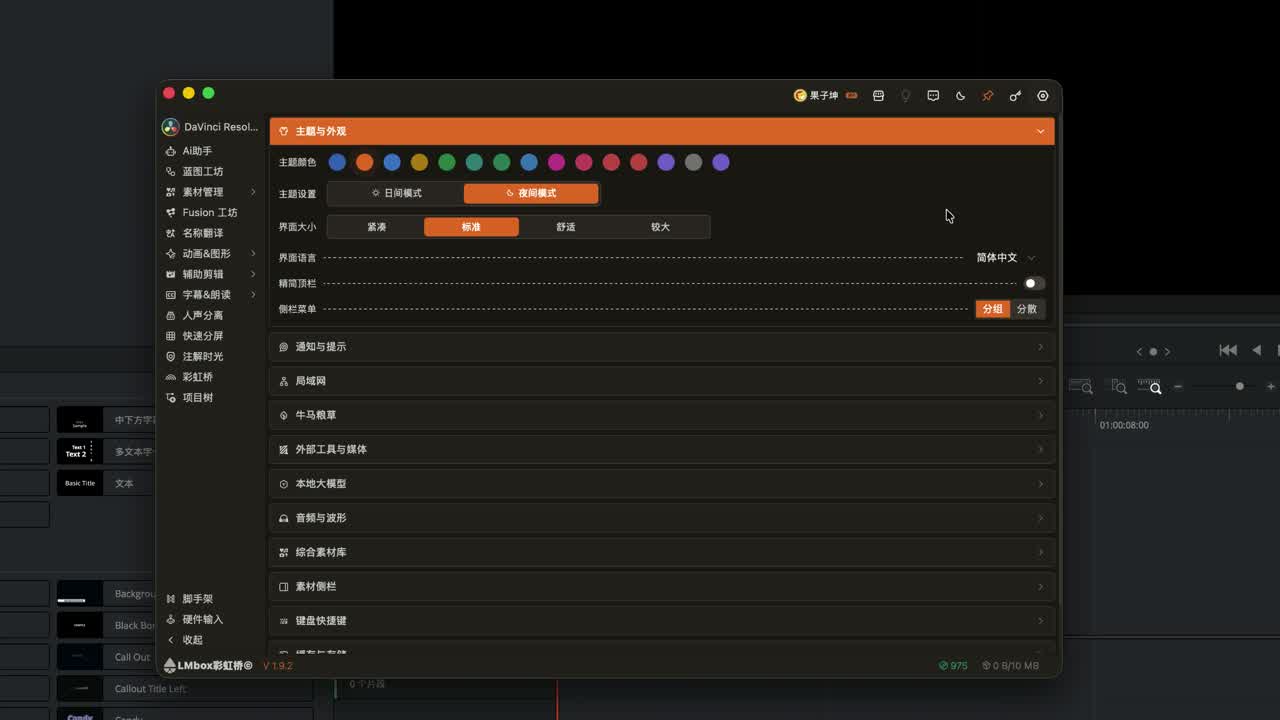
Figure: The media pages sit together in the sidebar (easier to find in Grouped mode).
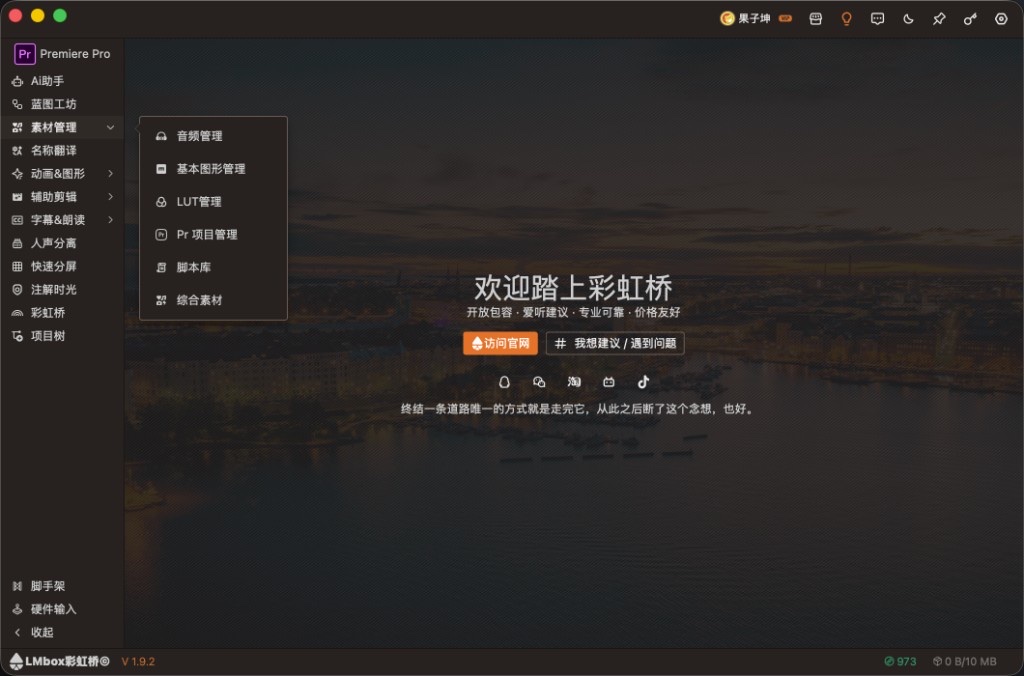
Figure: In Grouped mode, click "Media" to expand Sound library, Motion graphics, LUT and more (if your screen differs, switch to "Grouped" in Settings › Theme & appearance).
Why the sidebar differs for DaVinci Resolve and Premiere
The pages listed under Media depend on which editing app is connected. With DaVinci Resolve you often see Fusion Presets and Motion graphics (OGraf / Lottie); switch to Premiere and you more often see Motion graphics (MOGRT). Mounting a folder works the same way; each page just accepts different file extensions.
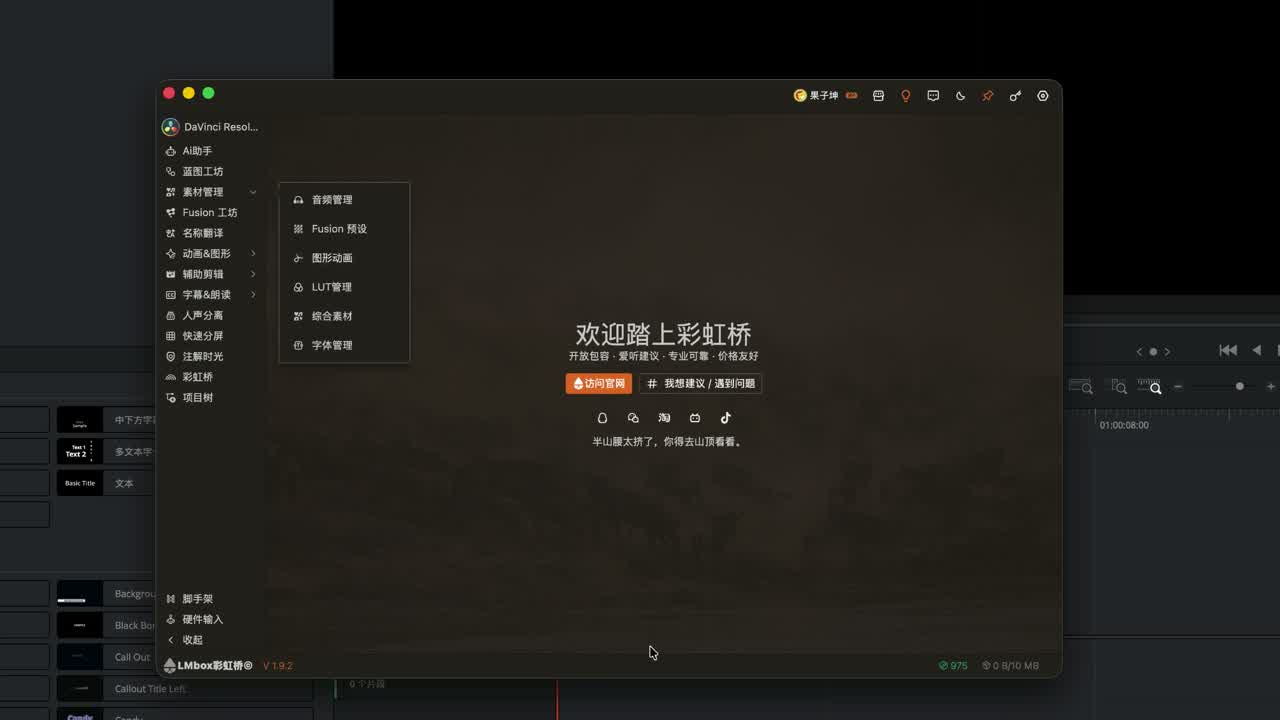
Figure: With DaVinci Resolve connected, the sidebar shows media pages that differ from Premiere.
Two ways to add
First look at the supported formats the current page lists, then add.
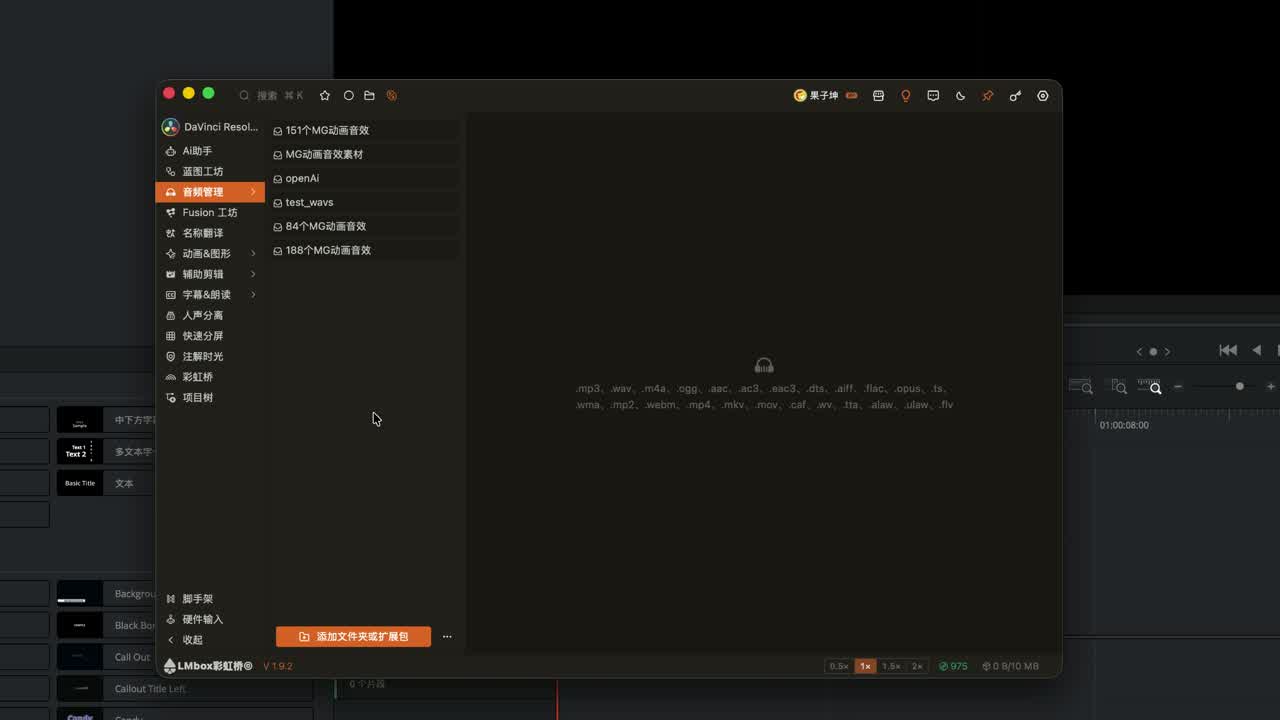
Figure: When you switch media pages, a hint shows the extensions that page supports.
| Way | How |
|---|---|
| Drag | Drag a folder into the dashed drop zone in the sidebar and let go. Duplicate paths are skipped |
| Button | Click Add folder or extension pack, then pick a folder in the system dialog and open it |
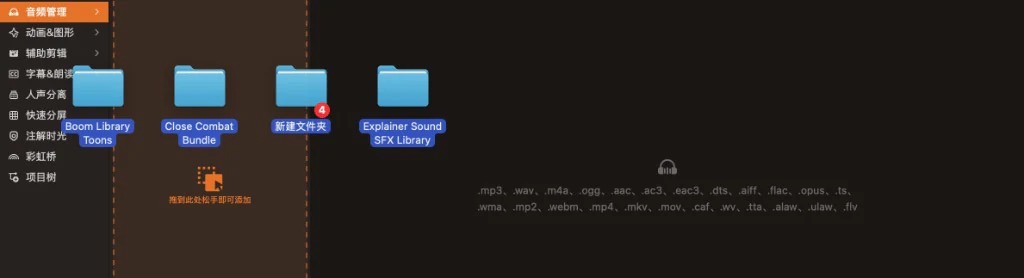
Figure: Drag folders from Finder / File Explorer into the dashed zone and let go to add them in bulk (same as in Sound library).
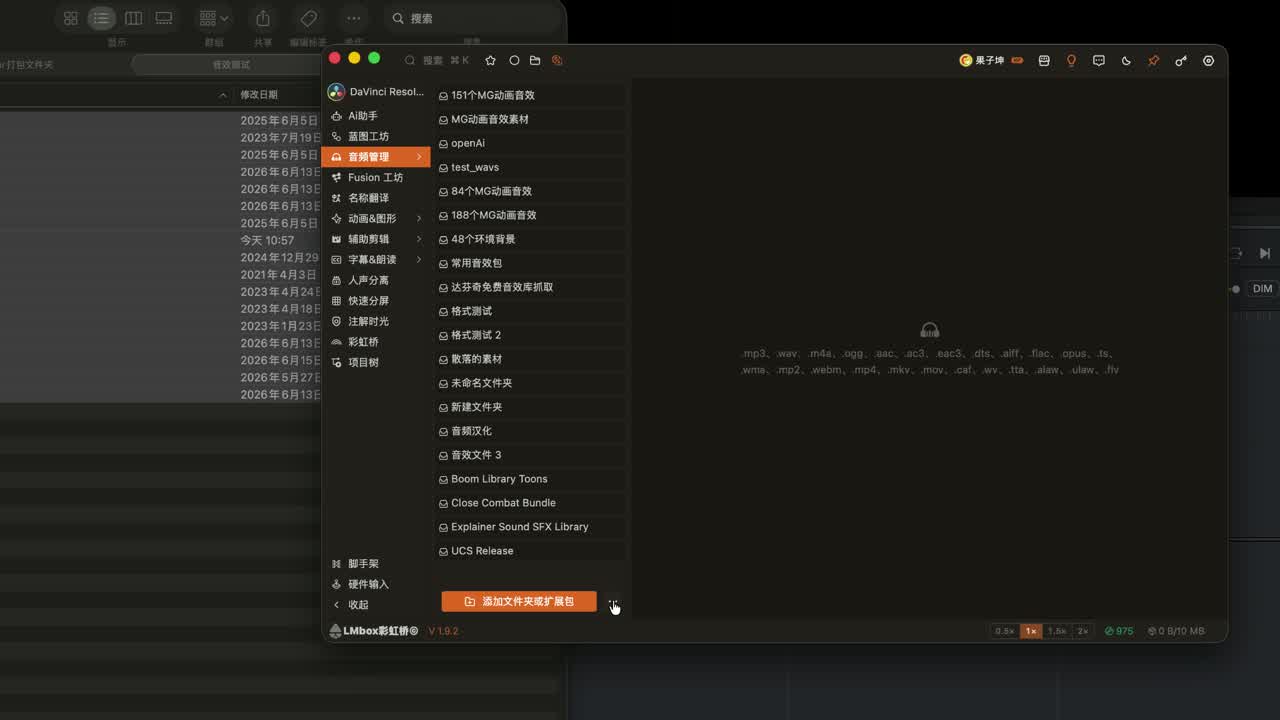
Figure: "Add folder or extension pack" at the bottom, then pick a local folder.
Motion graphics, LUT, Fusion Presets and other pages support the same two ways. For details see Motion graphics (MOGRT), LUT library and Fusion Presets.
Removing and sorting
| Action | Notes |
|---|---|
| Right-click → Remove from list | Removes the root folder from the sidebar |
| Delete mode | Click delete, tick folders one by one, then click Done |
| Change order | Right-click to enter sort mode, move the folders you use most to the top, then click Done |
Note
Deleting only affects the LmBox Bridge list. It does not clear the folder on your disk.
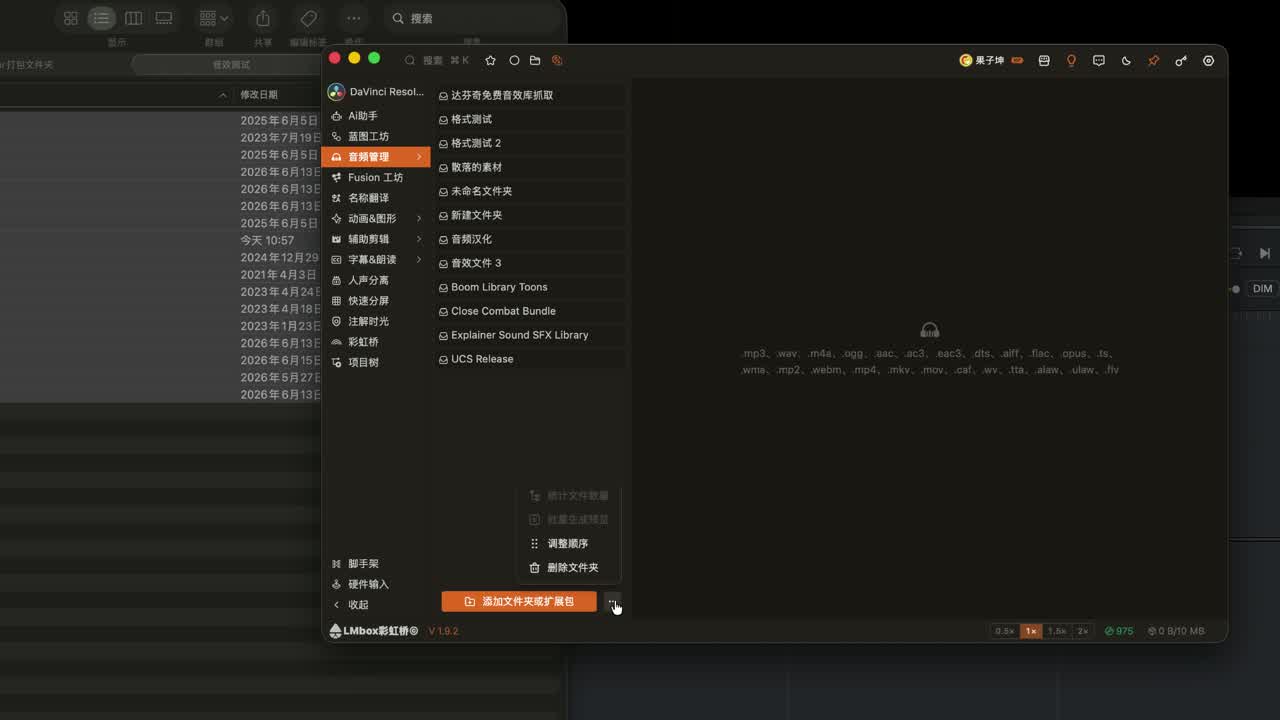
Figure: In delete mode, remove the roots you do not need, then exit.
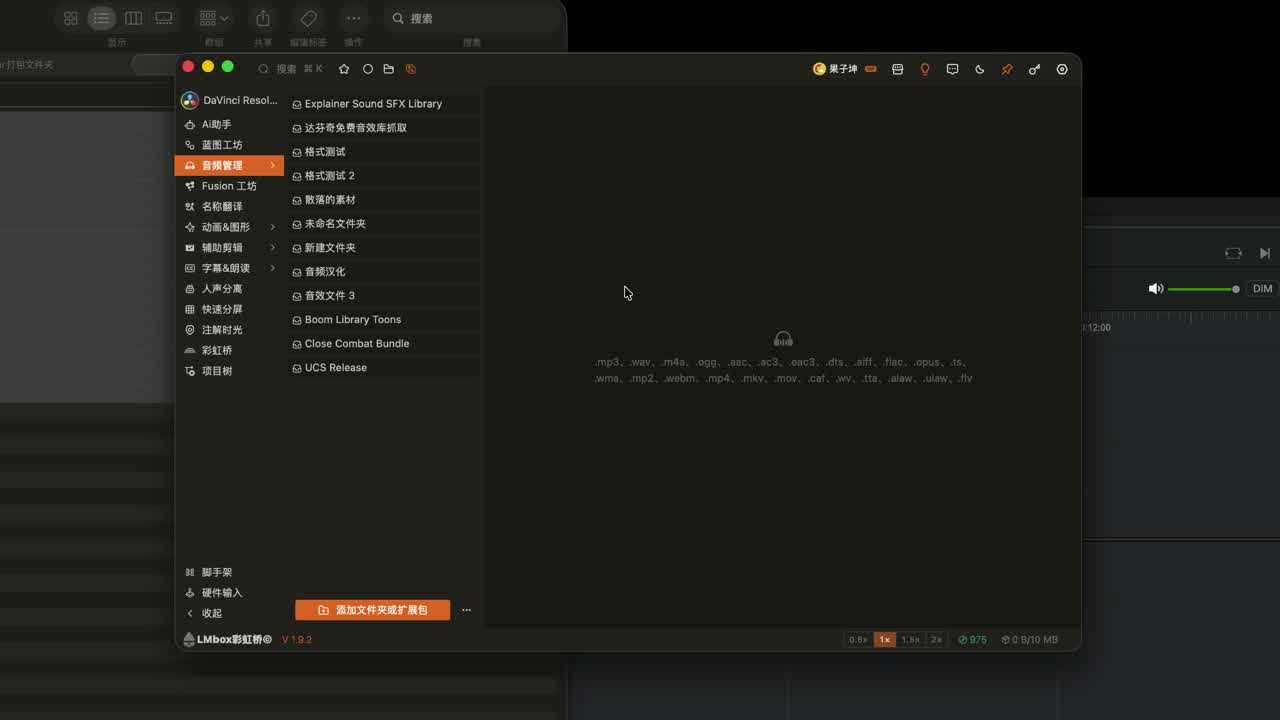
Figure: Put the important folders first.
Extension packs and guide files
Extension packs work like local folders: add them one by one, add all, or pick the folder with the button. If a pack ships a guide file, you can drag it into the sidebar to write several kinds of resources at once. After dragging, switch to the Motion graphics, transitions (Premiere presets), LUT library and other pages to check they were added. For an overview of how packs are deployed, see Asset packs in the desktop app.
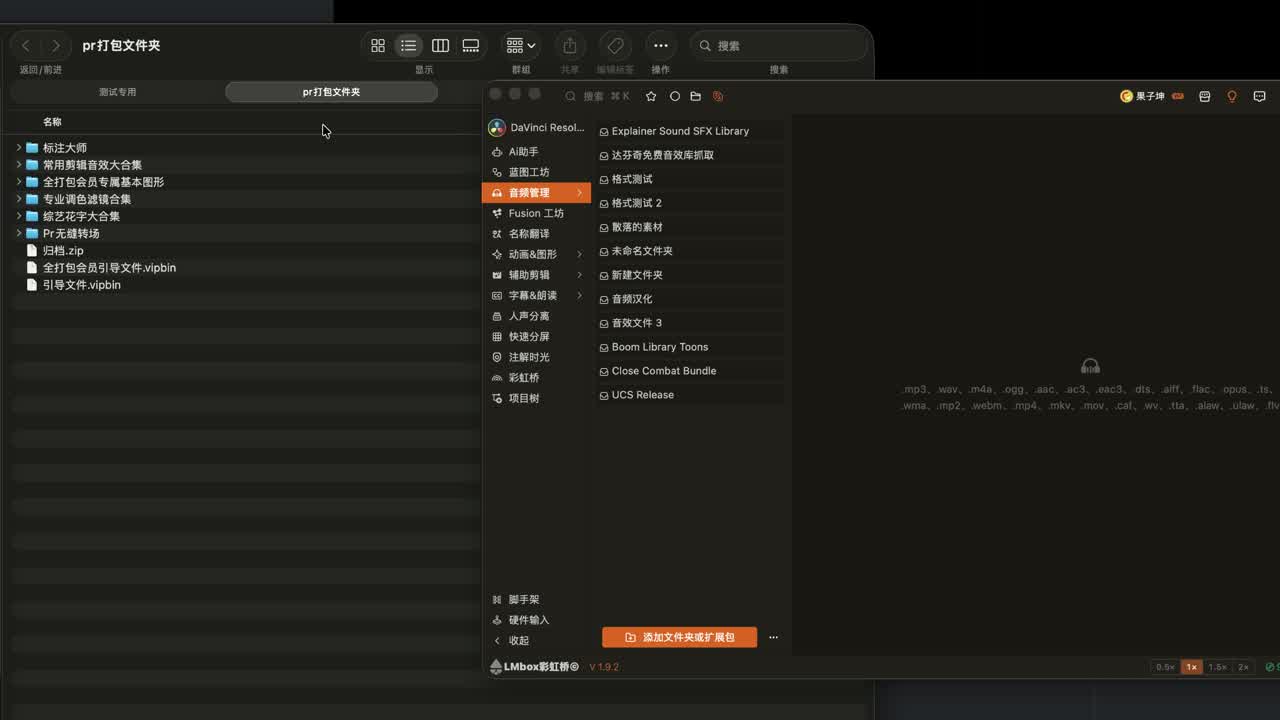
Figure: A guide file can be dragged into the sidebar to add many items in bulk.
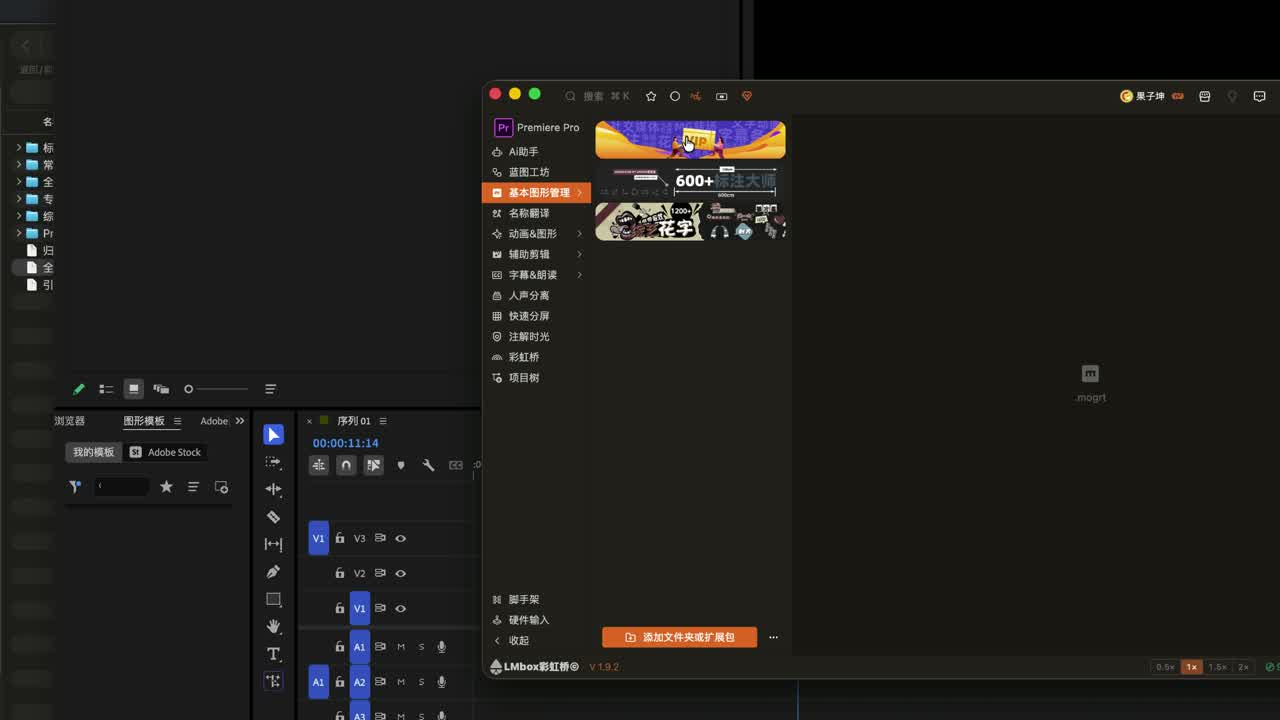
Figure: After adding in bulk, switch to the matching media page to check the list.
What to learn after you add a library
| Goal | Where |
|---|---|
| Audio: waveform preview, range, speed and reverse, import into the editing app | Blog LmBox Bridge Sound library · Guide Sound library |
| Waveform style / concurrency / translated names | Settings · Audio & waveforms |
| Button-level use of other media pages | The Lab guide of each page (linked in the table above) |
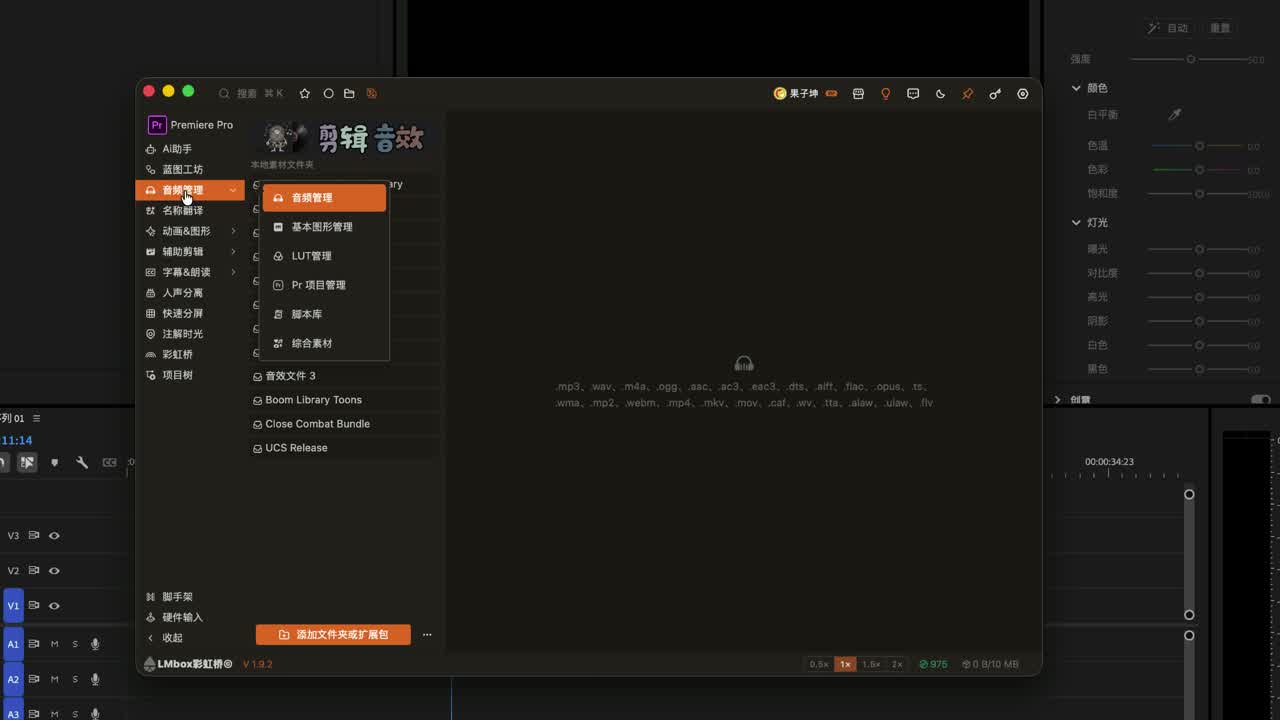
Figure: Adding a library works the same way everywhere. For advanced steps on each page, see its guide.
How it works (what you can notice)
The sidebar stores a list of "root folders / extension packs". It does not copy files into the LmBox Bridge project. Switching the editing app changes which media pages you see. A guide file mounts resources onto the matching pages from its list. Deleting a list item only removes the mount.
FAQ
How do I add a local media folder?
Drag it into the dashed zone, or click "Add folder or extension pack" and pick a folder.
Does deleting from the sidebar delete files on disk?
No. It only removes the folder from the list.
Why does the sidebar differ for DaVinci Resolve and Premiere?
The media pages follow the connected editing app. Adding a library works the same way.
How do I add extension packs and guide files?
Packs are added like local folders. After you drag in a guide file, switch pages to check.
Should I pick Grouped or Scattered?
To see Media in one place as in the tutorials, use Grouped (Settings).
How do I use audio after adding a library?
See the Sound library blog post and the Sound library guide.
Further reading
- LmBox Bridge Sound library (blog) — preview, light editing and import after you add a library
- Sound library (Lab guide)
- Settings · Theme & appearance — Grouped / Scattered
- Settings · Media sidebar
- Motion graphics (MOGRT) · LUT library · Fusion Presets
- Asset packs in the desktop app
- Lab features overview
- Install the desktop app
- Demo video on Bilibili