
DaVinci Resolve Fusion slowing down with piles of DRFX? LmBox Bridge Fusion Presets: mount any drive, import on demand
Step-by-step guide
For the full screen reference, right-click menu, translation drawer and the .drfx tidy-up Skill, see Fusion Presets (Lab guide). This post is the illustrated companion to the public class. To browse the community, see Fusion Lab. If you have not mounted a folder in the sidebar yet, start with Media folders: how to add and remove them. The screenshots show the Chinese interface.
Hi, I am KernelKun. Double-clicking a .drfx in DaVinci Resolve is handy, but have you wondered where it actually gets installed? On Windows it often goes to the C drive, and on Mac to the system drive. Once you reach a gigabyte or two, even a good computer gets a sticky Fusion list, because the app has to unpack that big bundle every time it starts. The LmBox Bridge desktop "Fusion Presets" manages them differently: keep templates on any drive and import only what you use. This write-up is based on the September 2026 public class. If a step differs, the main guide wins.
Video tutorial
Public class demo: Fusion Presets (keep DRFX off the system drive, import on demand, translate to a saved copy). Open on Bilibili
What you will learn
- What Fusion Presets is, and how it differs from Fusion Lab
- How to install DaVinci Resolve templates without filling the system drive
- Blurry covers or no hover animation: get cover / preview
- How to translate Fusion templates: always Save as copy after translating
- Expand DRFX packs first; if the type is wrong, correct the folder type
- Once tidy, upload to Fusion Lab; replace fonts and clean up after import
What are Fusion Presets
Fusion Presets is the local Fusion template library in LmBox Bridge: mount official packs, folders shared by friends or .setting files in the sidebar, browse and preview them by folder, and write them into the current DaVinci Resolve project only when you use them. In one line: the library is on your drive, the list is in LmBox Bridge, and DaVinci Resolve takes only the few items you need right now.
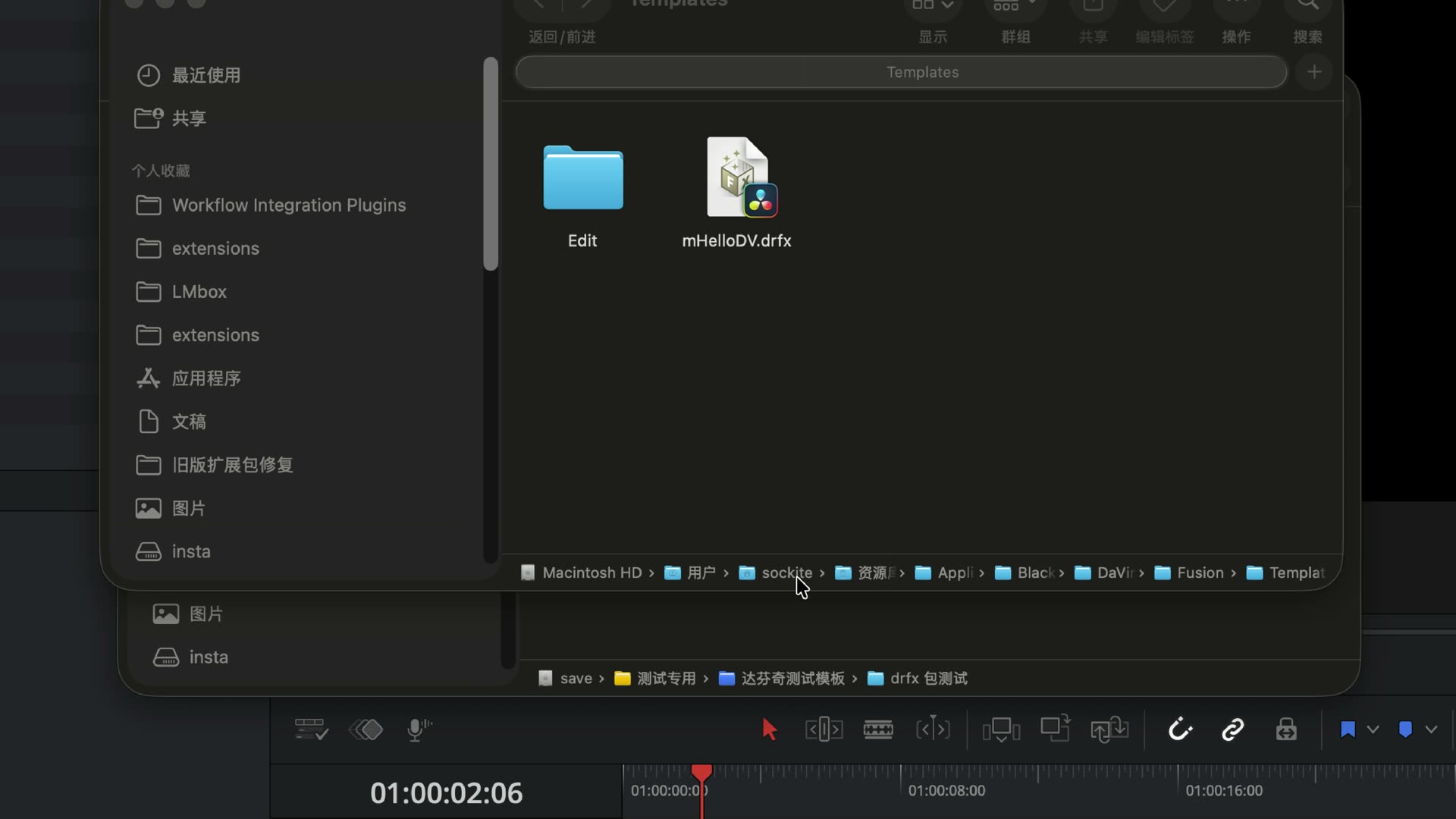
Figure: Opening comparison — after you double-click a .drfx, the files often land in the system drive's Fusion template path.
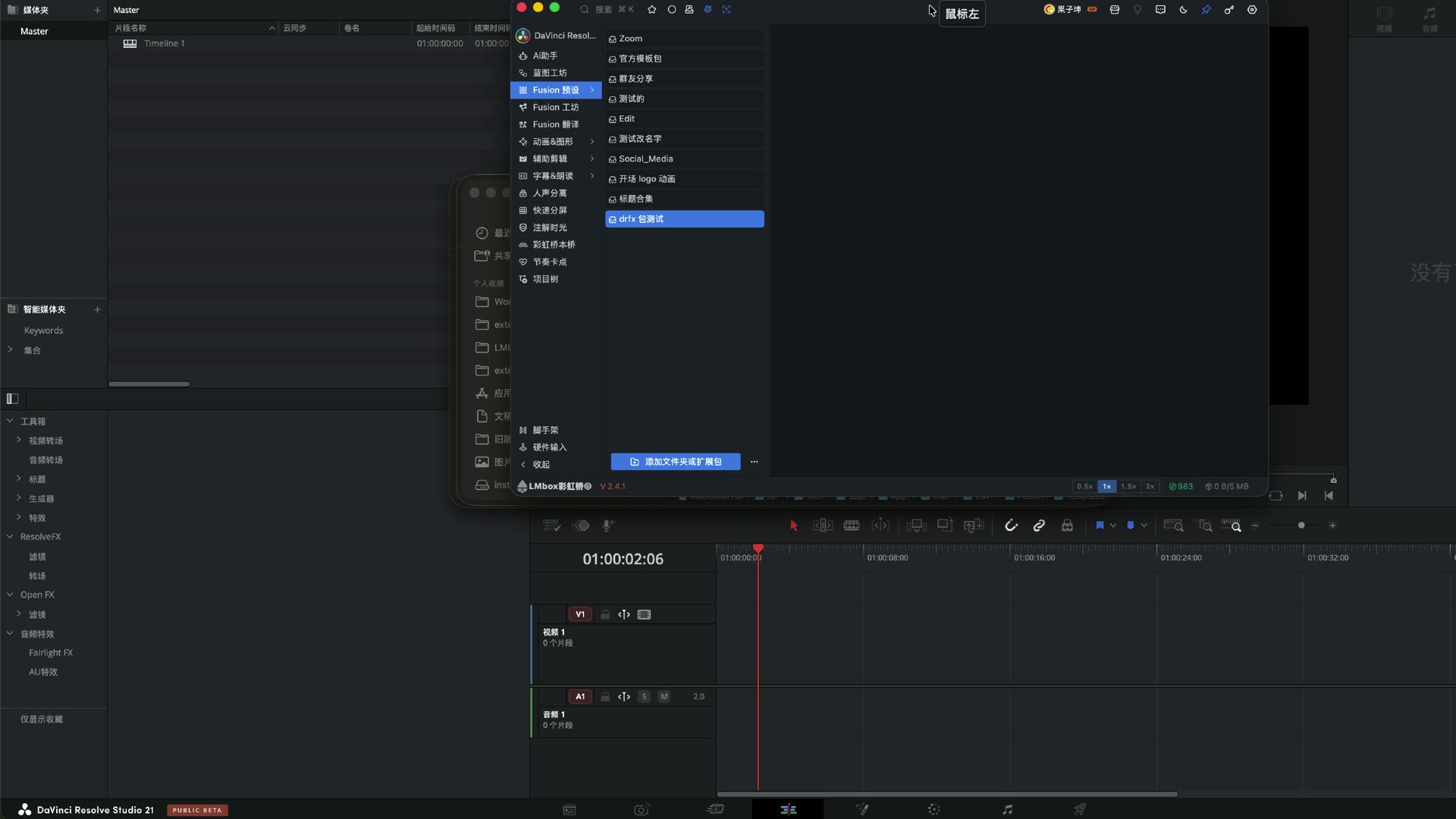
Figure: "Fusion Presets" in the LmBox Bridge sidebar. Below it, "Add folder or extension pack" mounts official template packs, folders shared by friends, or your own folders.
How are Fusion Presets different from Fusion Lab
| Fusion Presets (this page) | Fusion Lab | |
|---|---|---|
| Focus | Browse, preview, translate and import local folders | Community discovery, download on demand, publishing |
| Typical source | Official template packs, local .setting files, downloaded folders | Online works |
| Upload | Right-click Upload to workshop to open the publish page | Publish work with the full form |
| What it fixes | A whole library sitting in the install folder, unpacking at start-up, a sticky list | Few templates to choose from, and you want to share a library together |
Both serve DaVinci Resolve Fusion. For managing the library on your own computer use Fusion Presets; to go browsing use Fusion Lab. For the community-side write-up, see the Fusion Lab blog post.
How to install DaVinci Resolve templates without lag
Most tutorials online still say: double-click the .drfx and click Install, or copy the .setting into a fixed app folder. The list then grows and start-up gets slower.
Here is the approach:
- Open the LmBox Bridge desktop app and go to Fusion Presets in the sidebar
- Click Add folder or extension pack, keep the templates on any drive and mount them
- Go into Titles / Transitions and other categories in the tree and browse the
.settingfiles - Connect the DaVinci Resolve extension and open a project → import when you use it
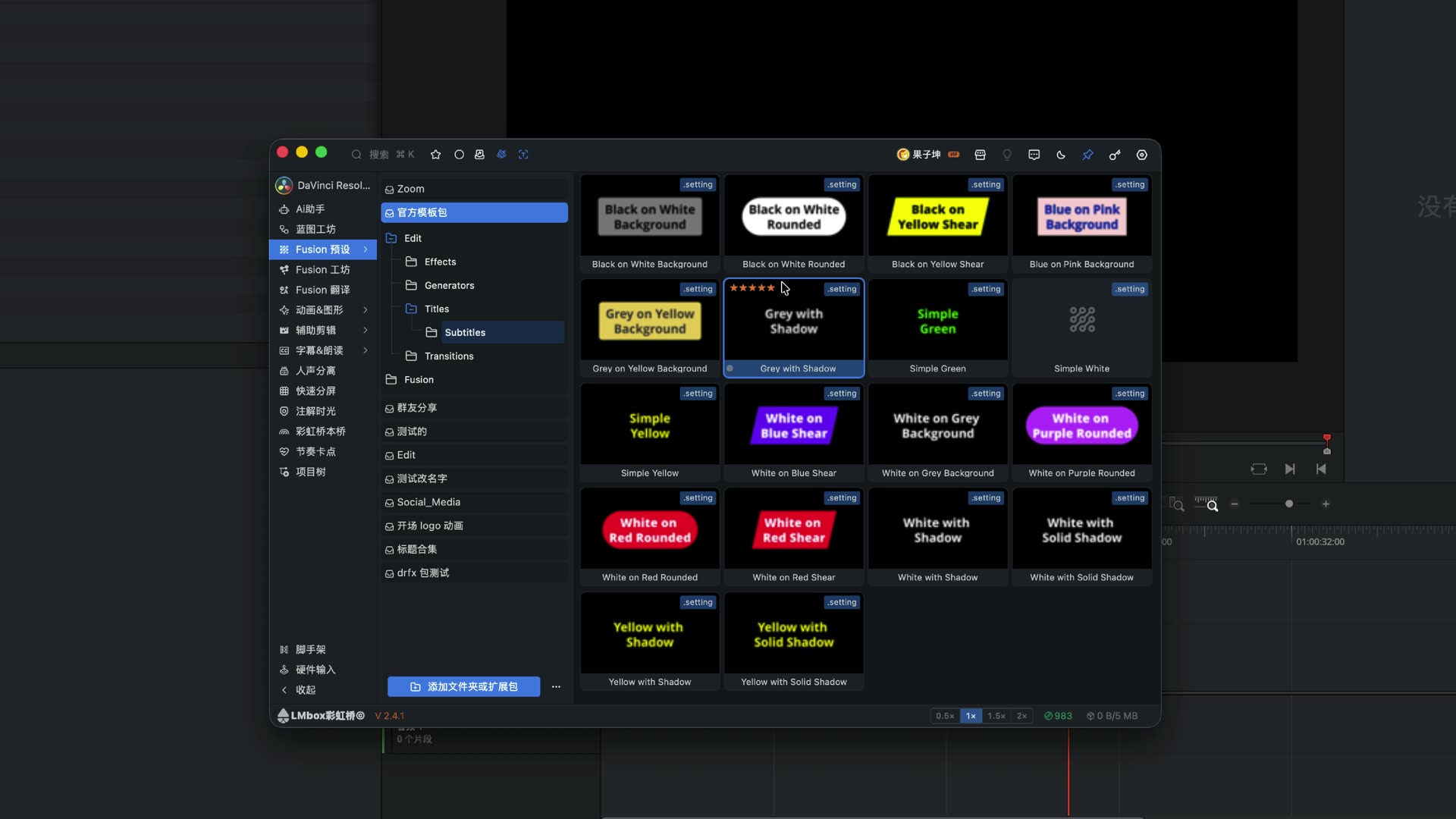
Figure: The "official template pack" is mounted, showing Edit → Titles → Subtitles. The card corner shows .setting.
After a transition or effect is imported, you may still need to apply it from the transition library or the Effects panel. Follow the app's hint. This is the same boundary as "effects go to the library first, then drag" in Fusion Lab.
Blurry covers or no animation on hover
If the list cannot recognize a template, right-click Get cover. If nothing animates on hover, right-click Get preview (roughly five seconds). The folder must be writable, and previews also need the local transcoding tools set up in Settings.
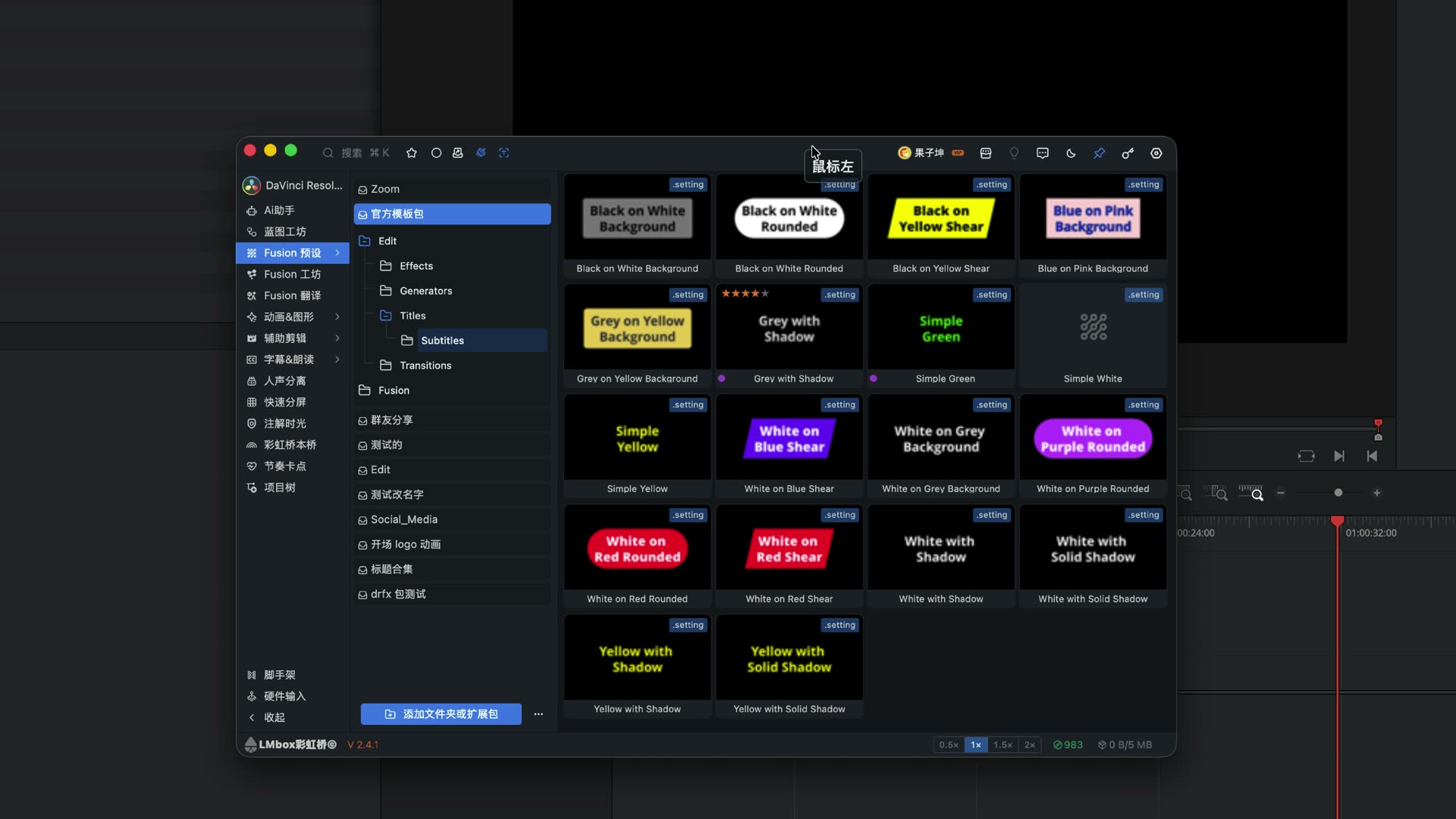
Figure: With covers, the grid is easier to recognize. You can also star items and open the folder to find them later.
How to translate Fusion templates
Control names in official packs are often in English. Right-click Translate template, tick Controls and / or Text, then translate: the cloud is fast, a large model is more accurate. Proofread it afterwards.
You often cannot overwrite the official file. Do not expect the original to turn into another language. Click Save as copy to keep originalname-translated_n, then import it, or come back to it later. The original English pack can stay.
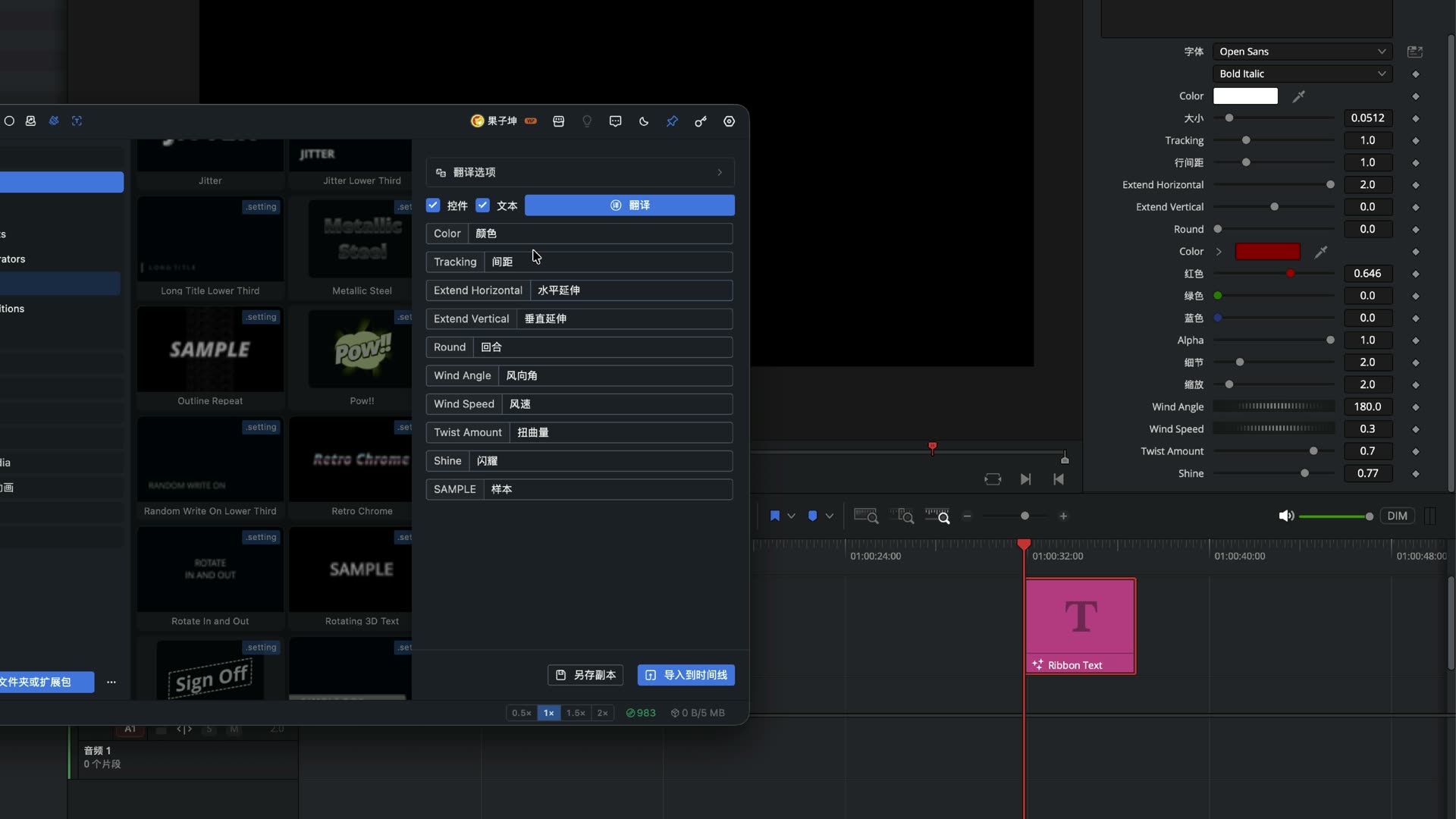
Figure: English control names next to the translation. At the bottom are "Save as copy" and "Import to timeline".
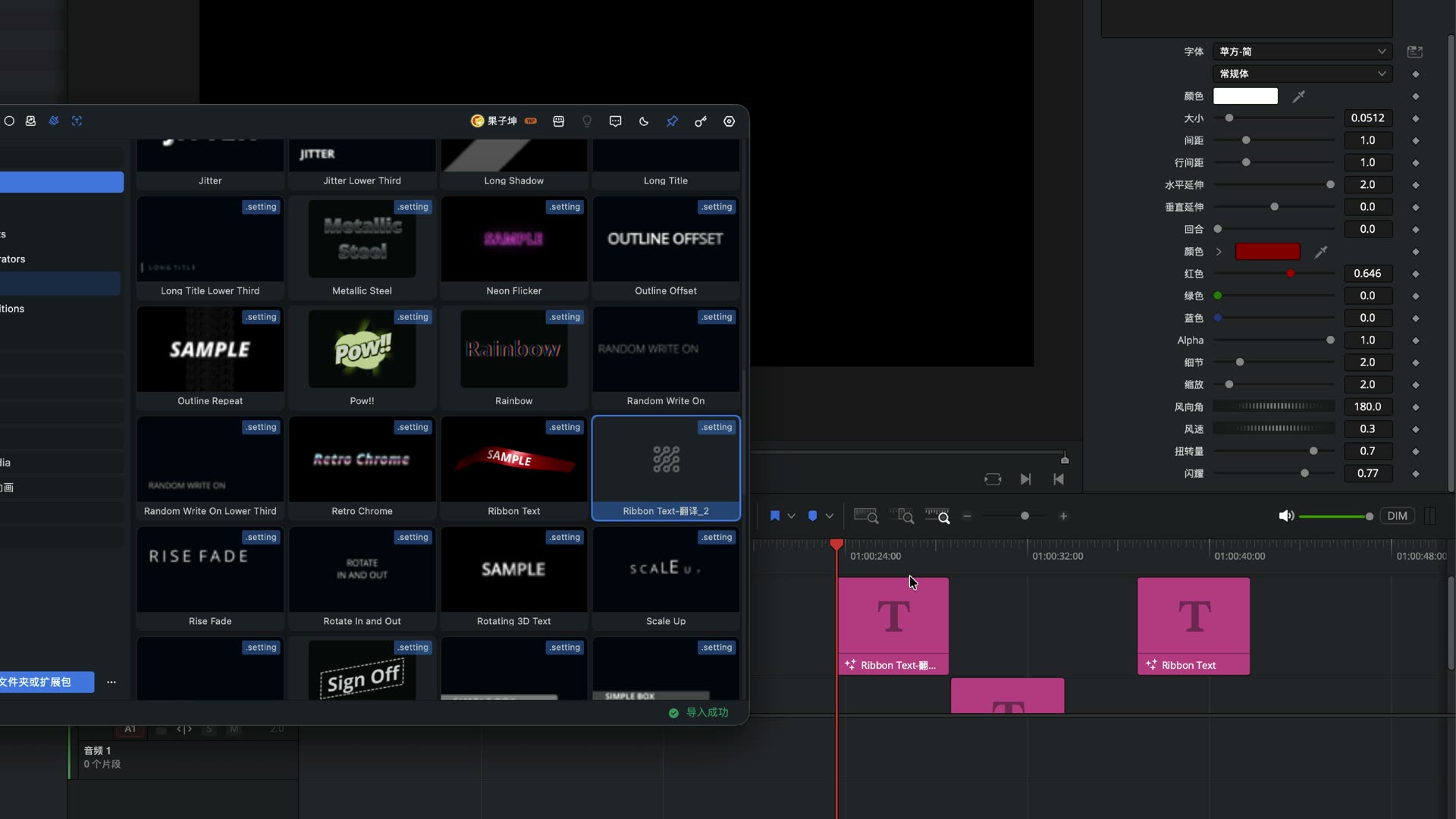
Figure: A copy such as "Ribbon Text-translated_2" shows in the list, and the timeline says the import worked.
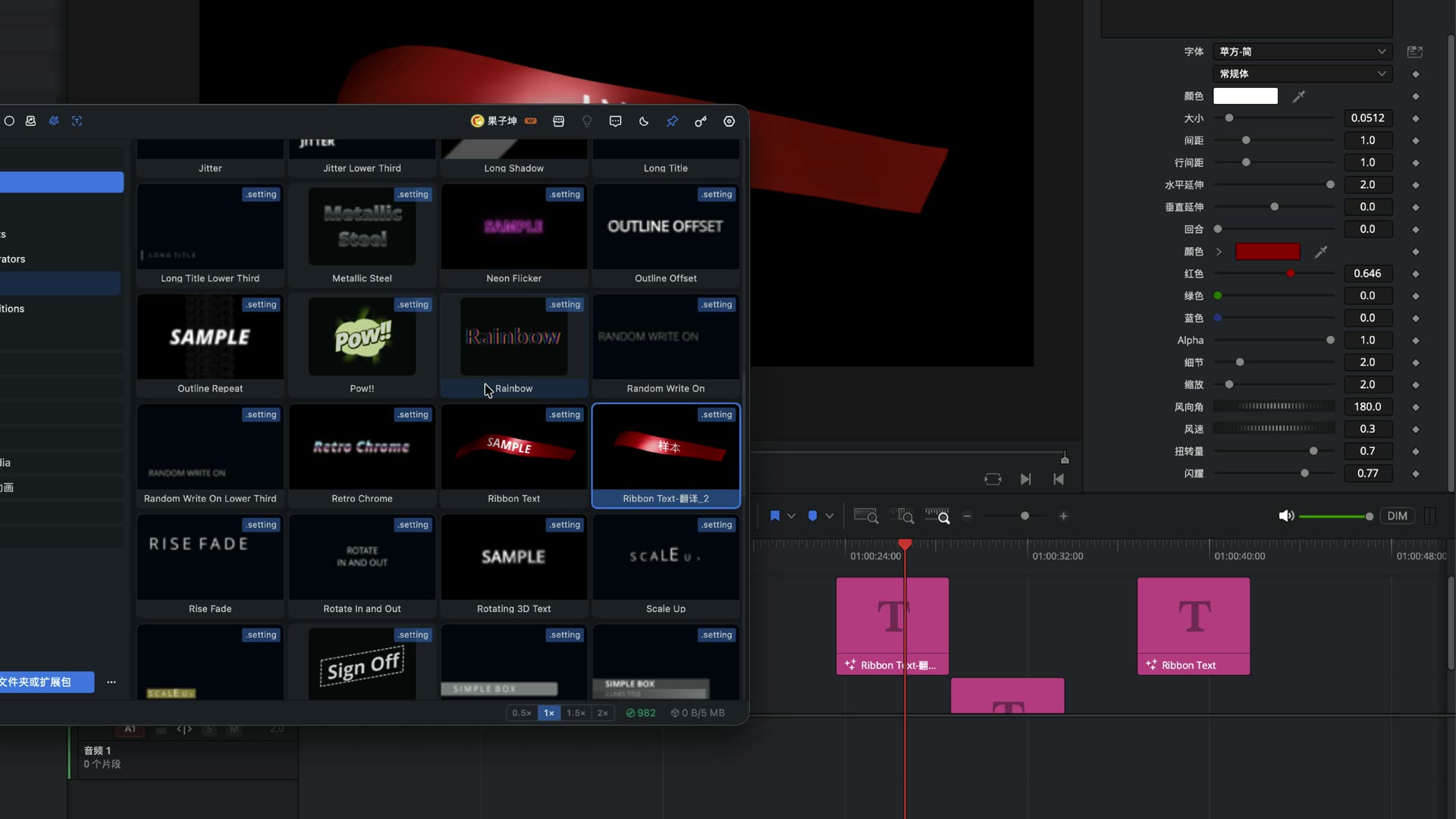
Figure: After you import the translated copy, the inspector shows the translation (for example "Sample"). The original English template stays as it was.
DRFX packs you cannot manage, or an effect mistaken for something else
Right-click a bundled template and you will see Expand. After expanding you can preview, translate and import single items like ordinary .setting files. The original pack file is kept.
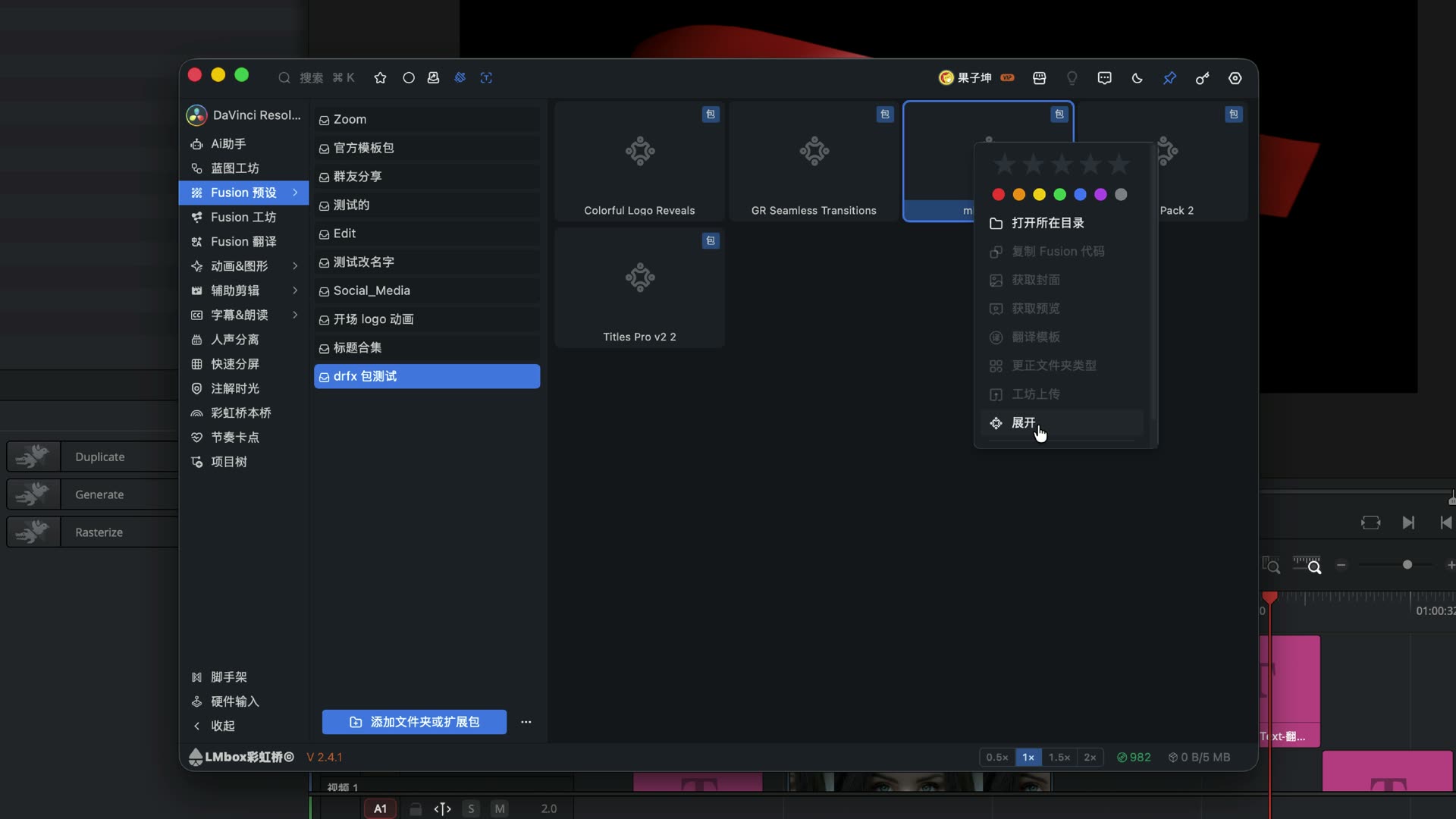
Figure: A .drfx test pack that has been mounted; right-click and pick "Expand".
If an effect is treated as a title, or a transition goes into the wrong library, right-click Correct folder type and pick again among Titles / Generators / Effects / Transitions. You do not need to mark the same folder again and again.
If you have a pile of nested .drfx files, the main guide offers a tidy-up Skill: give it to any agent that supports Skills to flatten and merge them into Edit/, then come back and add the folder. The in-app "Expand" suits one mounted pack; use the Skill for bulk tidying.
Once tidy, how to upload to Fusion Lab
After you tidy the local library, right-click Upload to workshop and the publish page opens. Add a cover, a short preview, a category and the permissions. A public work with caps set to 0 is free. Follow the statement and the community rules. Sources whose authors do not allow listing cannot be uploaded.
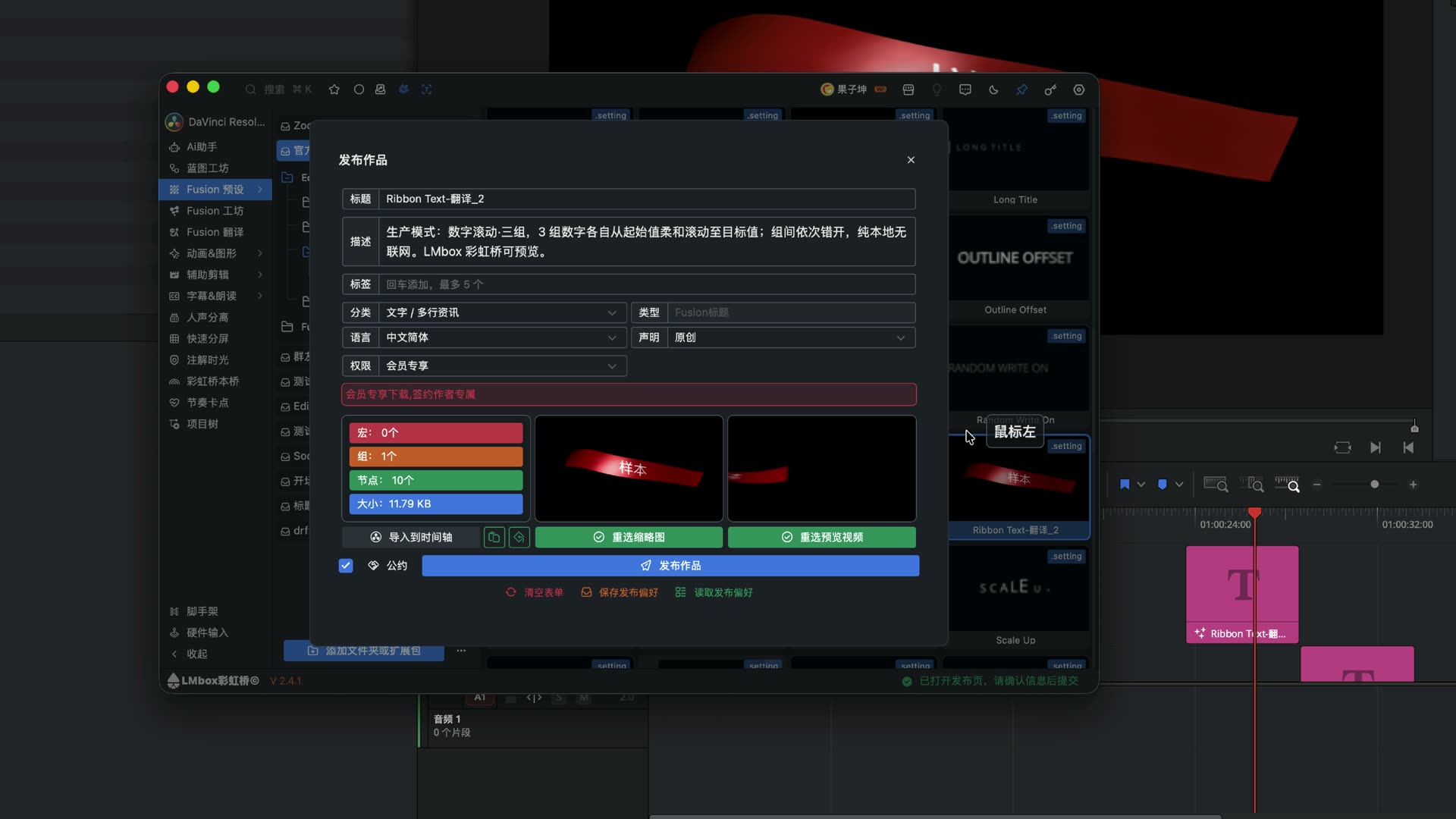
Figure: From Fusion Presets to "Publish work". You can pick a new cover and preview, tick the community rules and submit.
Wrong fonts after import, and clearing backups
The top bar has Replace fonts on import on by default: Windows and Mac each use a common system font (follow the current option). When Clean up after import is on, LmBox Bridge tries not to leave temporary backups on the original files in your library.
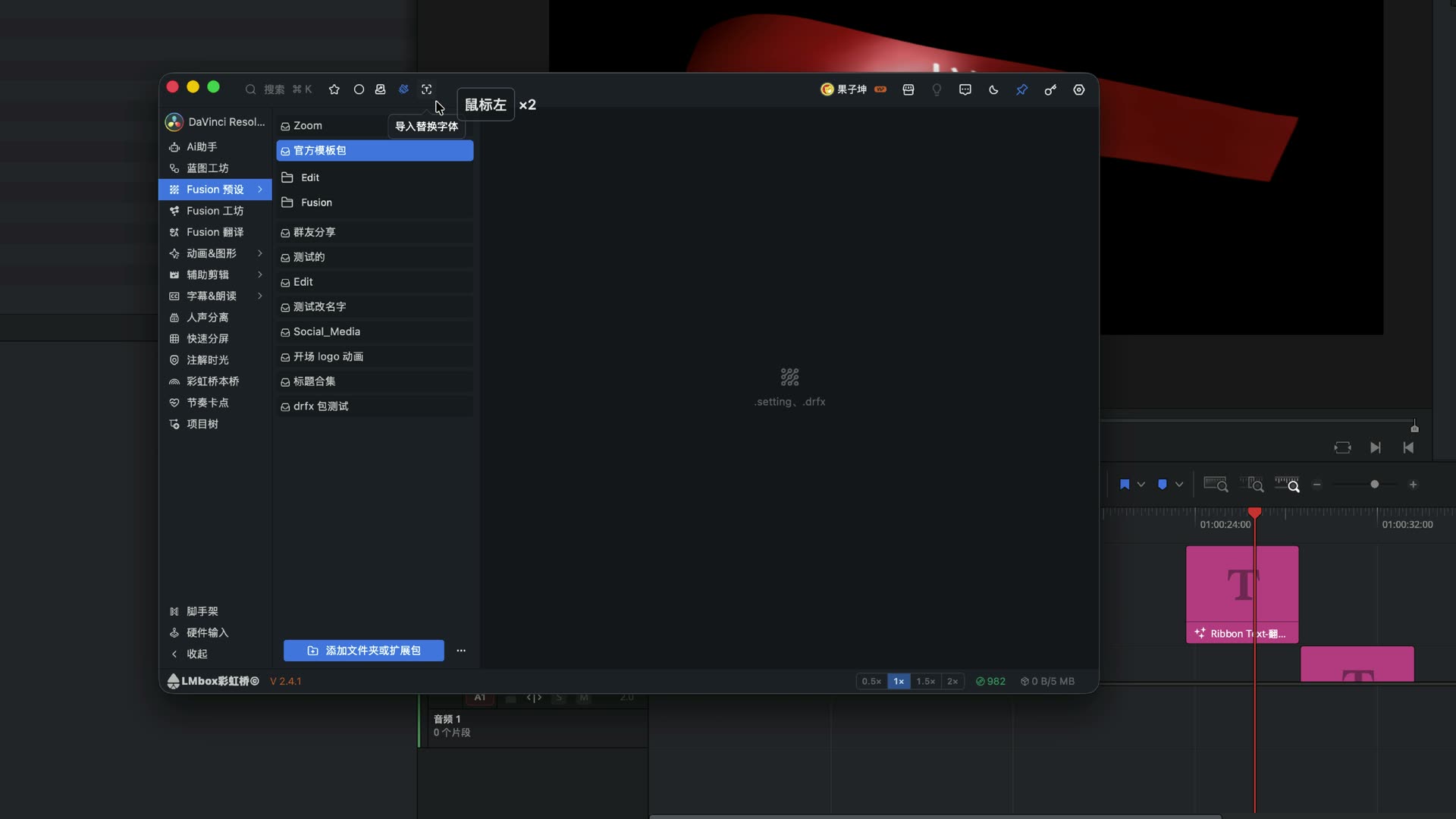
Figure: The Fusion Presets top bar has a switch for "Replace fonts on import", the same option as on the Fusion Lab side.
How it works (what you can notice)
- Mount outside: you decide where the templates live; LmBox Bridge only browses them and writes into the project on demand
- Import when used: less unpacking of whole bundles at DaVinci Resolve start-up, and lighter effect/title lists
- Save as copy: translating does not overwrite the official pack, so an update or reinstall will not wipe your translation
- Type marking: tells the import whether it is a title, generator, effect or transition, so it does not go into the wrong library
Fusion Presets or installing whole .drfx bundles
| Approach | Best for | Watch out for |
|---|---|---|
Double-click / install many .drfx into DaVinci Resolve's folder | Bundles that must stay installed, special official distribution | Fills the system drive, unpacks at start-up, sticky list |
| Fusion Presets mounting a local folder | Official packs, your own library, translating and tidying | Import when used; transitions/effects may still need one drag |
| Fusion Lab, import on demand | Browsing the community, downloading others' work | Not a manager for your local folders |
Do not claim Fusion Presets can replace every always-installed bundle 1:1. Most everyday titles / transitions / generators / effects can live outside and load on demand; a few official or special packs may still use the traditional install.
FAQ
Q: What are Fusion Presets?
A: The local Fusion .setting template library in the LmBox Bridge desktop app: browse, preview, translate and import into DaVinci Resolve, or right-click to upload to the workshop.
Q: How do I install DaVinci Resolve templates without lag?
A: Keep the folder on any drive, add it in Fusion Presets and browse. Import to the current project only when you use it. Do not keep the whole library in the install folder.
Q: How are Fusion Presets different from Fusion Lab?
A: Presets manage local folders; Fusion Lab is the sharing community. The Presets page can right-click "Upload to workshop" into the same publish page.
Q: Why does DRFX on the system drive cause lag?
A: The bigger the bundle, the more DaVinci Resolve has to unpack at start-up and the heavier the Fusion tool list gets. Mounting outside keeps whole bundles off the system drive.
Q: How do I translate Fusion templates? Does it overwrite the original?
A: Right-click Translate template, tick Controls/Text and translate. It defaults to Save as copy, so the official pack is not overwritten.
Q: What is the difference between .drfx and .setting?
A: .drfx is usually a bundled install package; .setting is a single light template. Presets shows .setting by folder; bundled items must be expanded first.
Q: An effect landed in the wrong folder. What now?
A: Right-click "Correct folder type" and pick Effects / Transitions / Titles / Generators. Marking the folder once is enough.
Q: Can this fully replace installing DRFX into DaVinci Resolve?
A: We cannot promise that. It eases system-drive bloat and the sticky list; special packs may still need a traditional install.