
Free Graphics
Free Graphics (sidebar , route freeGraphics) is a desktop canvas editor: add text / shapes / images, edit style or animation (in, emphasis, out), arrange clips on a timeline, and save presets. An external assistant can edit projects on this computer. Export stays a button on the page.
What you will learn
- Open the canvas, layers, inspector, and timeline
- Add text and switch between Style and Animation
- Save and load presets
- Use AI create so it can edit this canvas animation
Export stays on the page
An external assistant can change the canvas and the animation. Exporting a graphic template or an image sequence is still a button on the page.
Desktop UI
Center canvas, left tools, right inspector (Style / Animation), bottom timeline.
New text or shapes land as an emphasis clip on the timeline (filling the middle gap), not an in clip. The canvas only shows a layer while the playhead sits on one of its clips. Deleting the last clip also removes that layer. Older projects that only have a short in clip will vanish after that clip; add an emphasis clip to keep them on screen. Clicking a timeline clip shows transform handles; if the playhead is outside that clip it jumps to the start of the clip.
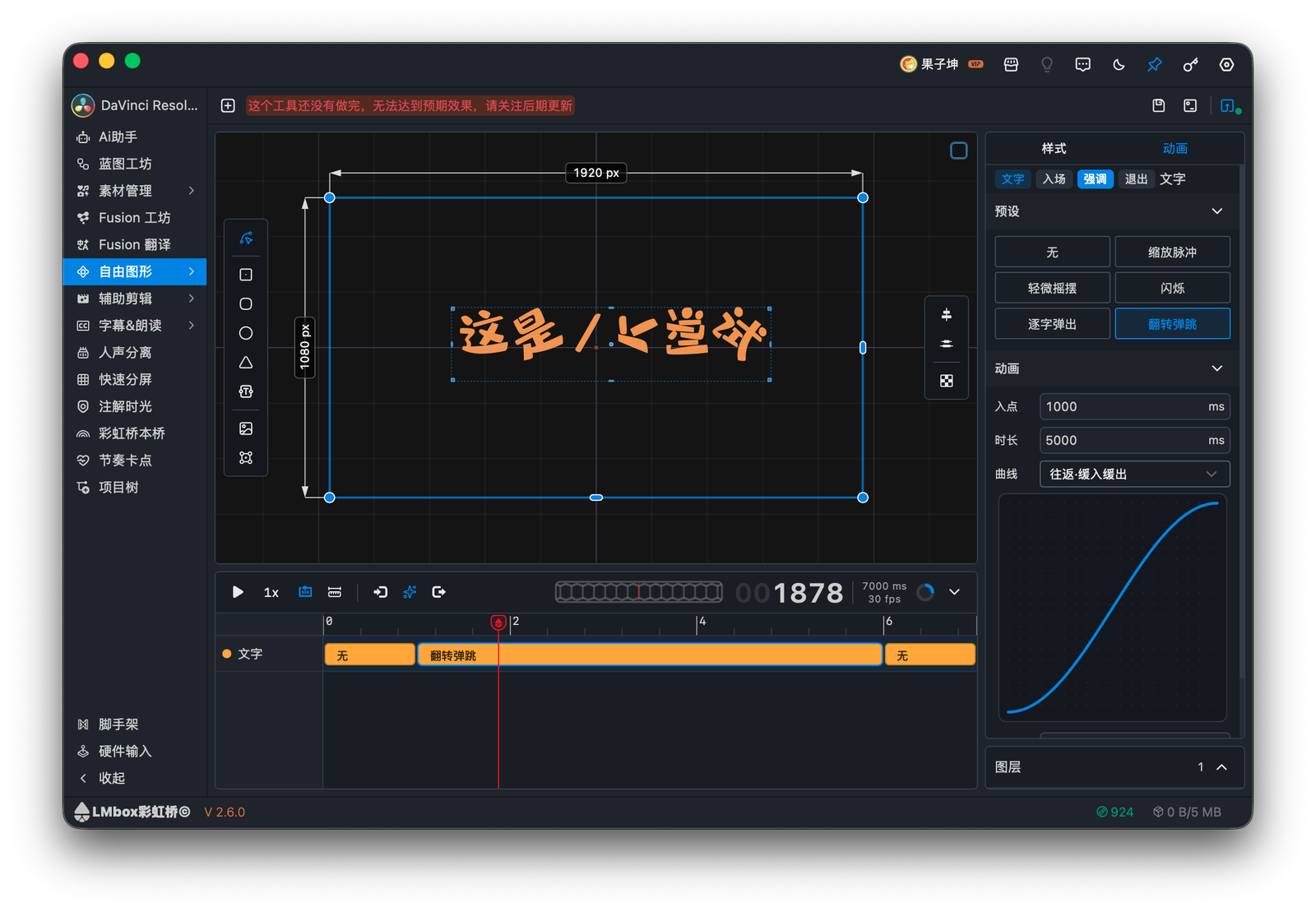
Figure: text on the canvas with an emphasis animation preset and easing curve.
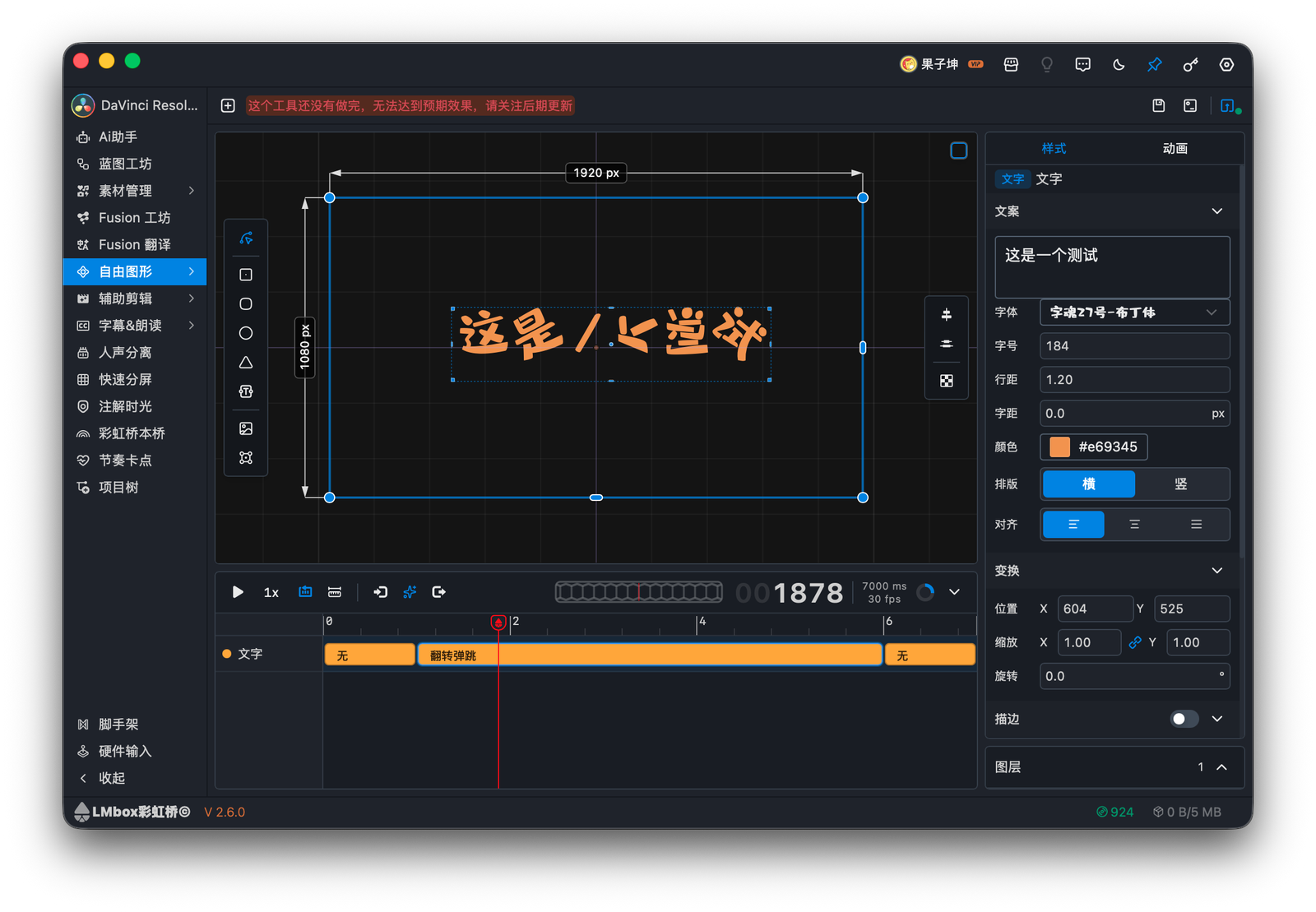
Figure: the Style tab for transform, stroke, and shadow.
Hand off to an external assistant
AI create on the toolbar copies a short note. Hover to preview it. Paste it into Cursor or a similar chat. The note says this is a canvas animation on this computer, and names the tool the assistant should use.
It can change:
- Projects: list, create, rename, delete
- Layers: text, shapes, images, vector art; remove a layer or one animation clip
- Animation: in, emphasis, and out; sliding presets can point up, down, left, or right; text can split by character, word, or line
- Picture: position, scale, rotation, anchor, corner radius, plus canvas size, duration, frame rate, and background
Images and vector art need a file on this computer. If that project is open, the canvas follows the saved result.
Related
Updates
3.3.0Animation presets are listed in full; hovering one plays it in a preview above the chips.3.3.0Timeline clips show in / emphasis / out icons before the name.3.3.0Clicking a timeline clip shows transform handles; if the playhead is outside that clip it jumps there.3.3.0The timeline now also controls when a layer is on canvas: new items start as emphasis, they only show while a clip covers the playhead, and removing the last clip removes the layer. Older projects with only a short in clip vanish after it; add an emphasis clip to keep them on screen.3.2.1Choosing None after another animation no longer leaves the last motion playing; after a shine sweep, None or another type also stops the shine. Switching while playing no longer stacks the old motion on the new one. Hover preview no longer blocks clicks on animation types.3.2.0The Inspector tab lets you arrange which text and colors stay editable after exporting a graphic template; export offers only graphic template and image sequence.3.2.0Reopening Free Graphics restores the last project and the playhead from when you saved.3.2.0Fixed a mismatch where entrance text looked wrong after releasing the timeline scrubber versus while dragging.3.2.0An external assistant can list, create, rename, or delete projects on this computer.3.2.0An external assistant can add text, shapes, images, and vector art, or remove a layer or one animation clip.3.2.0An external assistant can apply in, emphasis, and out animation; sliding presets can point up, down, left, or right.3.2.0An external assistant can change position, scale, rotation, anchor, and corner radius, replace an image or vector art, and split text by character, word, or line.3.2.0An external assistant can change canvas size, duration, frame rate, and background.3.2.0The toolbar now says “AI create” and no longer shows the unfinished-tool notice.