
Sync publish
Sync publish in LmBox Bridge (sidebar ) lets you write a video / article / post on this computer, then use the companion Chrome / Edge extension to fill each site’s create-page draft. The extension opens pages and fills forms; it does not click Publish for you.
Start from a shared master draft, or tweak title and body per site.
Video tutorial
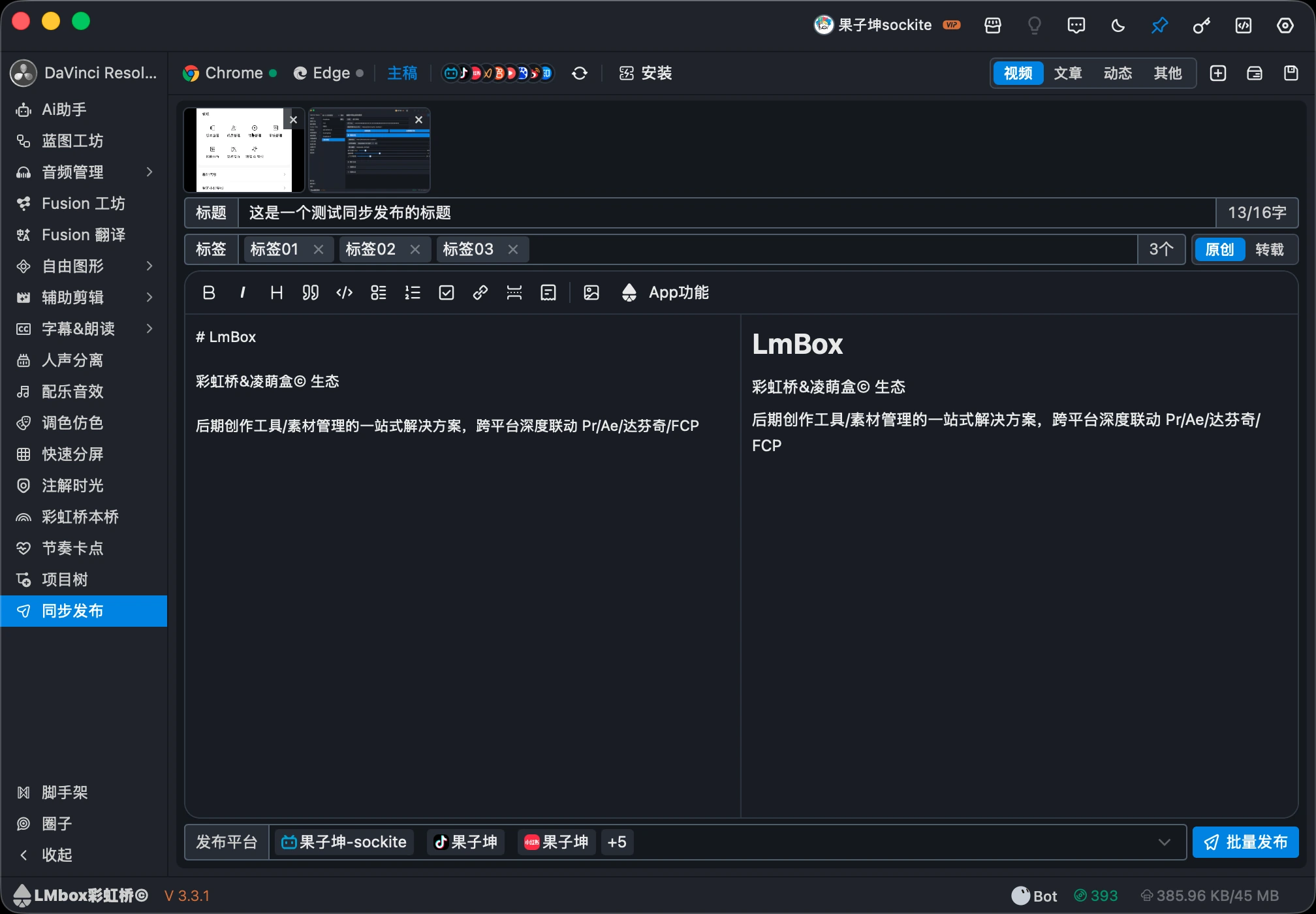
You will learn
- Install the extension from toolbar Install and check the connection light
- Sign in on each site in the extension
- Use the toolbar icons to draft, save, switch site drafts, then queue for the extension
Install the extension
You need the companion extension. The small light next to Chrome / Edge on the toolbar should show live.
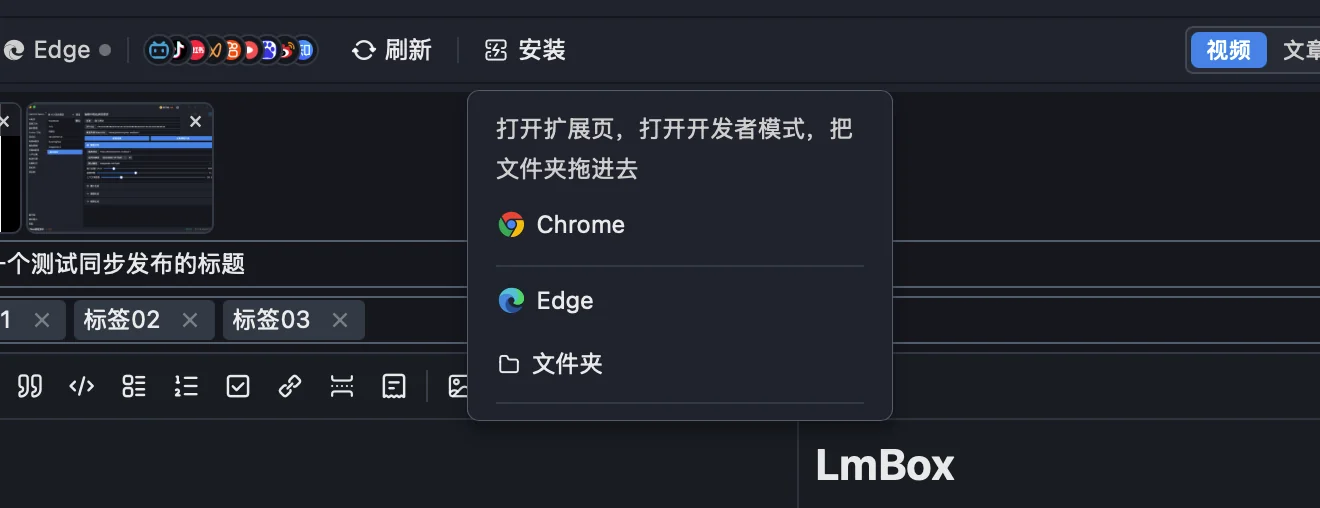
- Open this page and click Install
- Choose Chrome or Edge → opens that browser’s extensions page; then Folder → reveals the extension directory on disk
- In the browser, turn on Developer mode → Load unpacked (or drop the folder in)
- Back in LmBox Bridge, check the light; if it is still off, click Refresh. After changing extension files, Reload in the browser first
Extensions pages (if the docs site blocks the link, paste it into that browser):
Notes
Use the folder the desktop app opens—do not drag source src/. Keep the extension on. You can install in both Chrome and Edge; keep the browser you use for filling connected.
Download and install the extension
- Unzip to get the folder 彩虹桥浏览器扩展
- Open chrome://extensions or edge://extensions and turn on Developer mode
- Choose Load unpacked and select that folder
- If you also use the desktop app, return to this page after loading and click Refresh in the top bar
Sign in
Sites must be signed in inside the extension before you can tick them here.
- Open the LmBox Bridge extension → Accounts
- Sign in for each site you need
- When the extension shows signed in, the desktop toolbar shows that site’s mark
Toolbar icons
Left to right:
| Spot | What | What it does |
|---|---|---|
| / + light | Connection | Live means the desktop app is talking to the extension in that browser |
| Master / current site name | Draft surface | Click to switch between the master draft and the last site draft |
| Stacked site icons | Bound platforms | Open the list: click a name to edit that site draft; the export icon opens that site’s create page |
| Refresh | Pull the latest connection and job state from the extension | |
| Install | Open Chrome / Edge extensions page, or the extension folder | |
| Video / article / post | Type | Controls the form and which platforms you can pick |
| New | Start a blank draft | |
| Drafts | Open the draft library and versions | |
| Save version | Save the current content as a version |
Icon buttons show a tip on hover. Save version tips toward the bottom-left so it stays on screen.
Supported platforms
Available sites depend on type (unsigned-in rows stay disabled until you sign in in the extension). Icons are each site’s public favicon, vendored into this docs site (same URLs the desktop app already uses—not fetched live while you read).
| Icon | Platform | Video | Article | Post |
|---|---|---|---|---|
 | Bilibili | ✓ | column | ✓ |
 | Douyin | ✓ | ✓ | |
 | Xiaohongshu | ✓ | note | ✓ |
 | Channels | ✓ | ✓ | |
 | Kuaishou | ✓ | ||
 | Xigua | ✓ | ||
 | Toutiao | ✓ | ✓ | |
 | Baijiahao | ✓ | article | ✓ |
 | ✓ | article | ✓ | |
 | Zhihu | ✓ | ✓ |
Video / article / post for the same site share the login, but fill through different create entries. The live list in the app wins.
Write and queue
- Pick a type, fill title and body, add cover / video / images as needed. Counts show beside title and tags
- To tweak per site: open that site draft from bound platforms, then click Master to switch back
- Under Platforms, tick targets (select all is available; long lists collapse to a few chips +N)
- Click Publish all (small button): this only queues for the extension—it does not open every site, and it does not click Publish
Then in the extension:
- You usually land on Jobs
- Sync one site, or Sync all
- Review each create page, then click Publish yourself on that site
Jobs and history
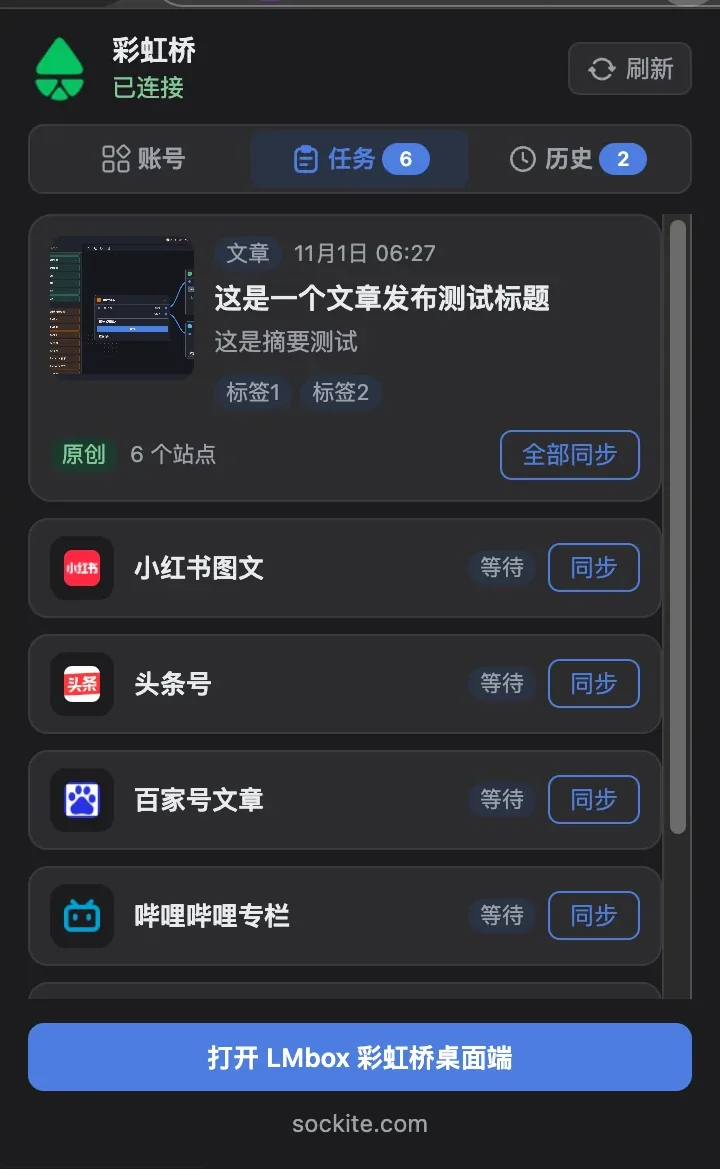
- Jobs: current draft and fill progress; failed sites can sync again
- History: older drafts replaced by a newer job; restore or delete
Toolbar Refresh aligns with the latest extension state.
Updates
3.3.2Master draft plus per-site drafts, so each platform can use its own title and copy.3.3.0Added Sync publish: write a video, article, or post, then fill each site’s create page as a draft with the companion browser extension. It does not click Publish for you.3.3.0Load the companion extension in Chrome or Edge from toolbar Install, sign in on each site, then sync site by site. The extension shows jobs and history.