
AI helper
Overview
An AI chat tool in LmBox Bridge, built on OpenAI-compatible APIs. It works with OpenAI, Alibaba Cloud Qwen and other compatible providers, and helps with Premiere Pro and After Effects questions, expression writing and more. Members can use the built-in models; everyone else can add their own API key.
Interface
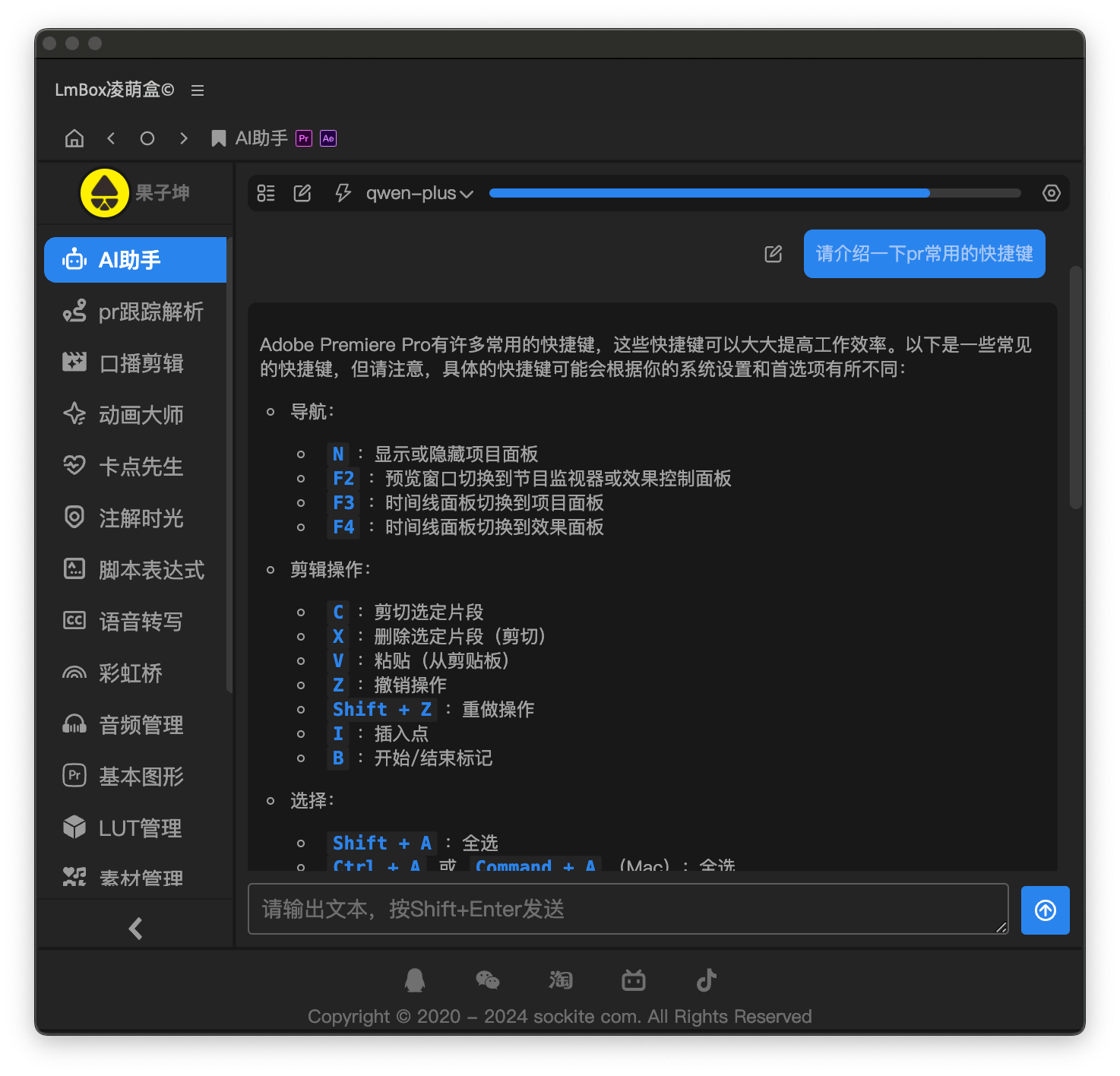
How to open
On the extension home page, click the button at the bottom center, then click in the sidebar.
How to use
Please note
Running large AI models is an ongoing cost, so long-term availability cannot be guaranteed. LmBox Bridge members can use the built-in models; if you are not a member, set up your own API key to keep using the tool.
Top bar
- Set your local API key and turn the local model on or off. Details
- Open and manage the list of past chats
- Switch the OpenAI model
- Start a new chat
Buttons in code blocks
TIP
Code blocks are created on the fly, so copying or running code sometimes fails. Scroll the mouse wheel a little and try again.
- Run the script in Premiere Pro or After Effects
- Write the expression to the selected layer property in After Effects
- Copy the code block
Buttons in the chat
- Edit a question again (clicking it removes all the messages after it)
- Send what you typed, or press
Shift+Enter - Stop the reply
Set up your own chat
- The
Use the current keyswitch turns the online key and your local key on or off.
Please note
Non-members can only use a key they set up locally. Members get the models we provide automatically and can start right away.
apiKeyis the key every large language model needs.baseURLis the server address. Presets are included forOpenAI,Qwen(Alibaba Cloud) and several relay providers.- If you have your own OpenAI account, get a key from the OpenAI sign-up page.
- Alibaba Cloud's
Qwenmodels also work well and come with a generous free quota. Get a DashScope API key (Alibaba Cloud help page). - Third-party relay providers that resell OpenAI-compatible access also work: enter the
baseURLand key they give you. Context messageslets the model take earlier messages into account. More context gives better answers but uses more tokens; for simple chats, 3 to 5 messages are usually enough.
Video tutorial
Release notes
2.7.0When you create a new Keychain you can pick common providers such as Kimi, SiliconFlow, StepFun, iFlytek Spark, xAI, Mistral and Groq; the address fills in once you choose a platform.1.6.0Chat and agent modes can use "Official cloud / Golden key", so you do not need your own model key.1.6.0Image and video modes can generate with the official Golden key (your account needs that capability turned on).0.2.5You can set a different large model for chat, images, video, audio and other uses, and pick one on this page as needed.0.2.0"Chat", "Agent" and "Image generation" each remember the Keychain and model you used last, and switch back when you change mode.0.1.8Fixed an issue where the agent sometimes stopped replying, or the screen got stuck, during follow-up questions inside an editing extension that needed the extension's own tools.