
AI shot finder: LmBox Bridge Shot scout searches your footage by description in DaVinci Resolve and Premiere
Step-by-step guide
For the full screen reference, steps and FAQ, see Shot scout (Lab guide). This post is the illustrated companion to the public class. The screenshots show the Chinese interface.
Hi, I am KernelKun. LmBox Bridge "Shot scout" lets you describe a shot in plain language, use a reference picture, or use the current timeline frame to find shots in your local footage fast, then import them straight into DaVinci Resolve or Premiere Pro. It suits piles of shot packs, matching a movie-commentary cut to the original film, and finding footage for a storyboard in bulk. It solves "find it and get it in", not "composite the effect for me in one click".
Video tutorial
Public class demo: how to use Shot scout. Open on Bilibili
What you will see
- What Shot scout is, and how it differs from a standalone footage search app
- How to find shots with AI in DaVinci Resolve and Premiere (three ways to search)
- How to arrange results and import them in bulk
- Where matching a finished cut and assembling from a script fit, and where they stop
What is LmBox Bridge Shot scout
Shot scout is the footage search and assembly tool under "Edit assist" in LmBox Bridge: build a search index for the project videos first, then search shots by description, picture or the host timeline frame, list the results by match score, and import them into your editing timeline. Its subtitle is "find shots by description": type "diving" or "sunset at the sea" and it recalls the related clips from your shot pack. It arrived with LmBox Bridge 1.8; version details are in the desktop release notes. For version details see the desktop release notes (Chinese only for now).
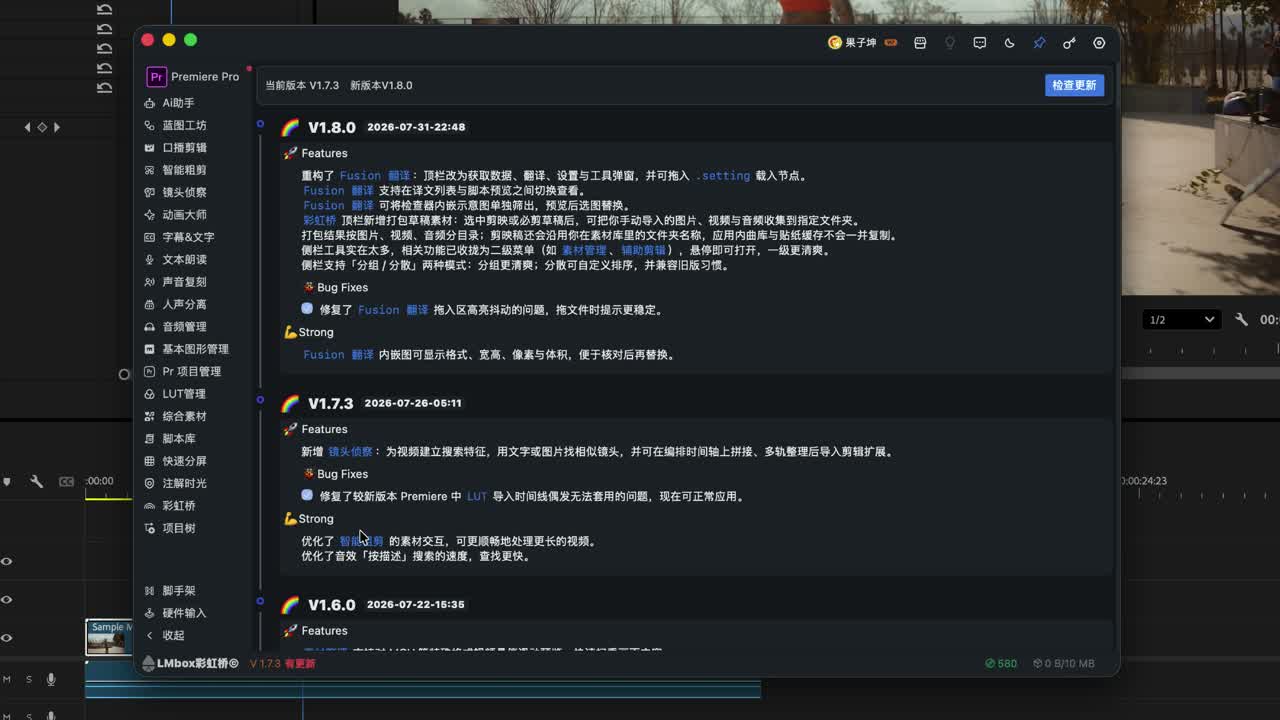
Figure: One highlight of 1.8 is the launch of Shot scout.
How is Shot scout different from a standalone footage search app
| LmBox Bridge Shot scout | Typical local semantic footage search tools | |
|---|---|---|
| Main goal | Find shots while you edit and write them back to DaVinci Resolve / Premiere | Locate in the library first, then bring clips into the editor by hand |
| Host link | Can grab a timeline frame to search and import results to the timeline | Usually does not use an editing extension |
| Assembly | Has its own assembly timeline with bulk import | Mostly search + export clips |
| Advanced | Match other footage by shot, assemble from a script | Varies by product |
Premiere and some other apps also have "search the picture by description". What sets Shot scout apart: one flow covers both DaVinci Resolve and Premiere, with assembly and bulk placement on the timeline.
What to prepare first
- Install and open the LmBox Bridge desktop app
- Open DaVinci Resolve or Premiere and check that the editing extension is connected
- In the sidebar, under "Edit assist", open "Shot scout"
- Create or open a project, drop videos in, run "Build search index", and wait until it is ready before you search
Note
Without a search index, description search and similar-shot search do not work. Grabbing a timeline frame and importing to the timeline also need the extension to be online.
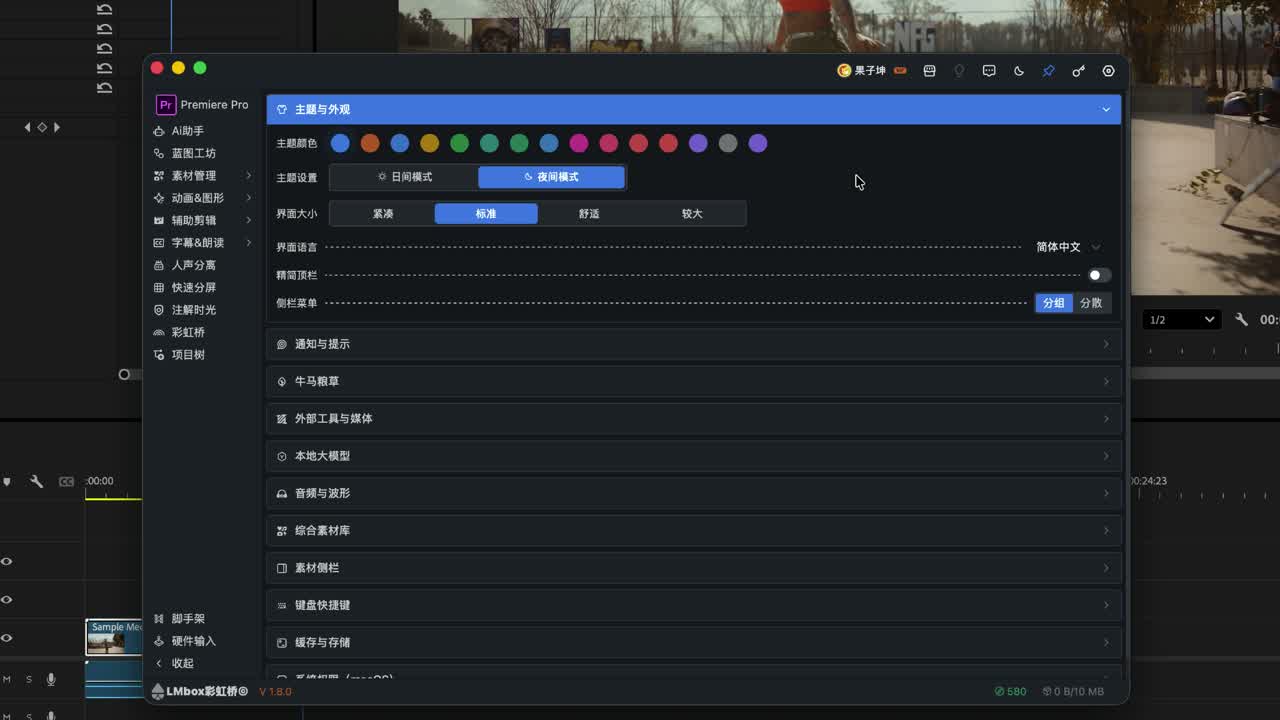
Figure: In 1.8 the sidebar can be "grouped" or "scattered", so small screens can hide tools you rarely use.
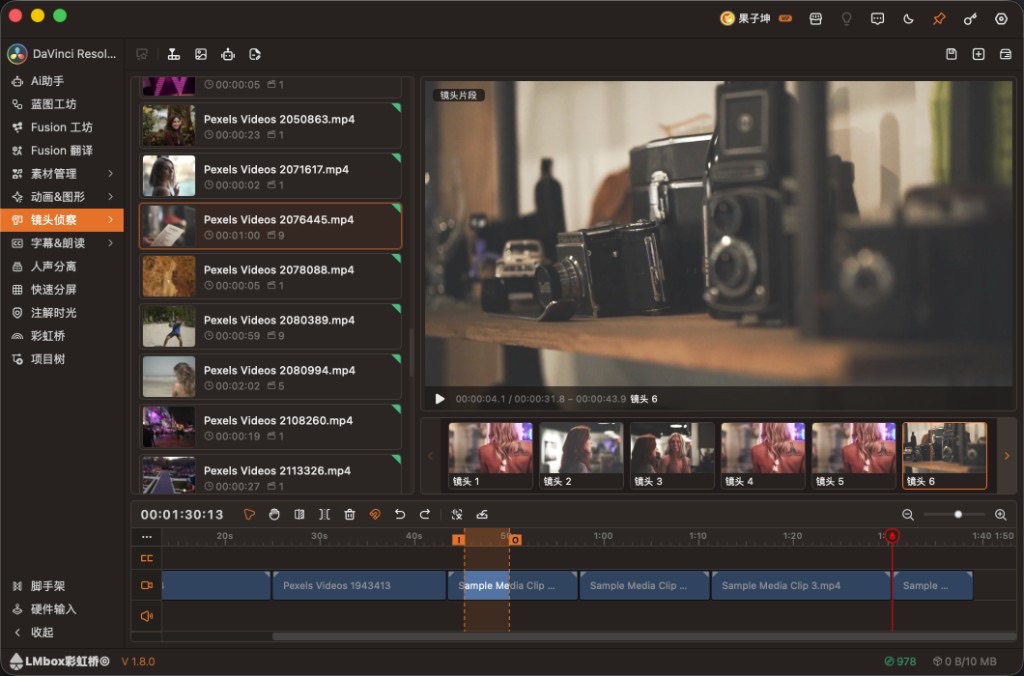
Figure: Shot scout on the desktop (video list, preview, shot strip and assembly timeline).
How the screen is divided (see the main guide)
| Area | What it does |
|---|---|
| Left: video list | Project footage; drop audio and video in; see index status and shot count |
| Middle: preview | Preview the selected shot or the assembly timeline program |
| Below it: shot strip | Cut shots, or search result thumbnails with match scores |
| Bottom: assembly timeline | Arrange first, then import into the host in bulk; trim, snap, in/out points, caption recognition and more |
| Top bar | Build search index, search by timeline frame, similar by picture, AI search, assemble from script, save / new / project library |
For the full icon list and the right-click menus (list / shot strip / assembly clips / ruler), see the Shot scout guide. If the extension will not connect, check LmBox Bridge Core (host connection) and the Plug-in manager first.
How to find shots with AI in DaVinci Resolve (three ways to search)
In short: the three entry points — timeline frame, text description, and similar shot / reference picture — all follow "build index → search → import or assemble". The steps are the same in DaVinci Resolve and Premiere. The text below uses DaVinci Resolve.
1. Search by timeline frame
Park the playhead on the picture you want and click "Search by timeline frame" (grab frame). The tool lists footage shots by similarity. Right-click to import to the host timeline, or add them to the assembly timeline first and import in one go.
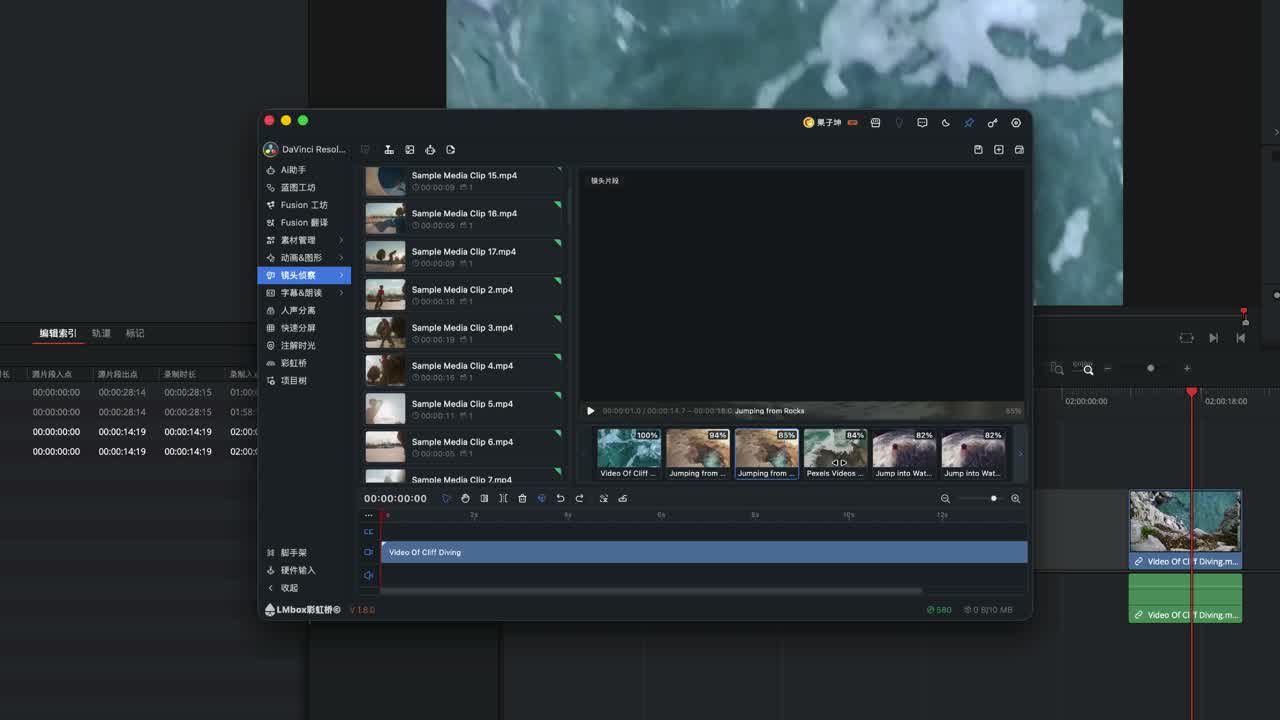
Figure: Pull one frame from the timeline and list alternative shots by similarity.
2. Premiere works the same way
In Premiere, grab a frame and search the same way. In the video: the frame may be hidden briefly while it is grabbed. If that bothers you, send a ticket to ask for it to be turned off.
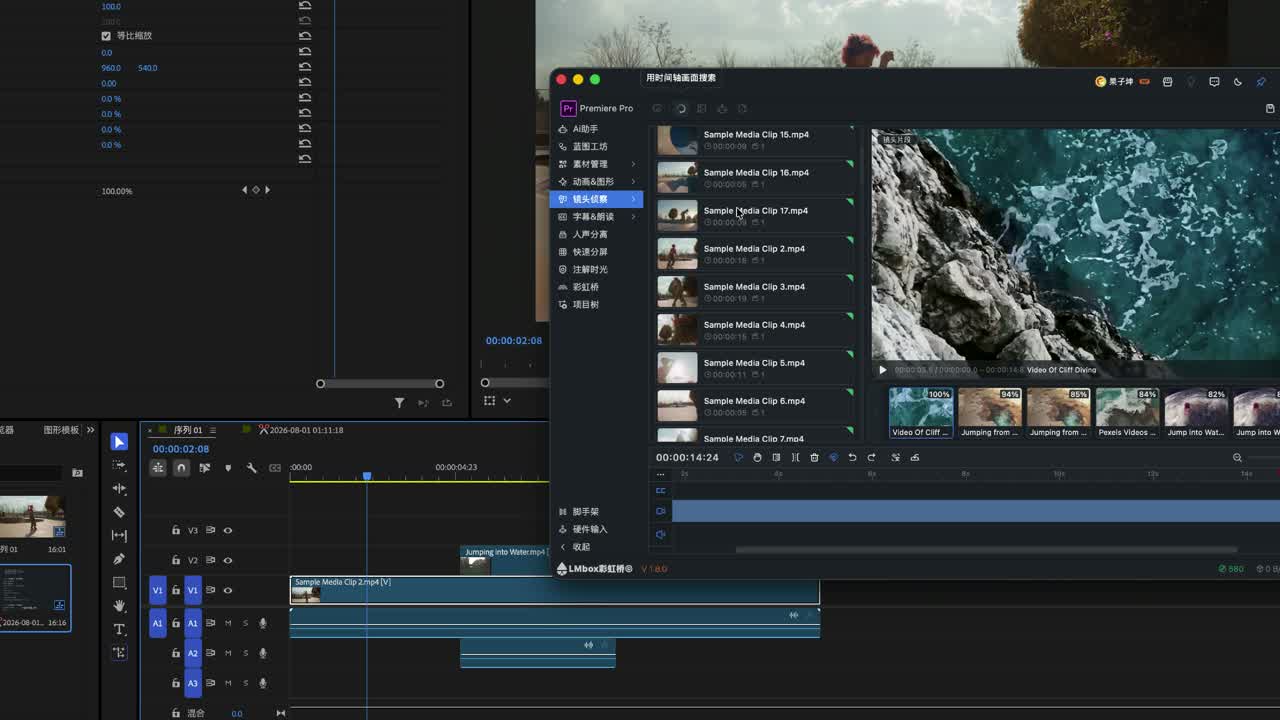
Figure: On the Premiere side too, you can find the scenes where a person appears from a picture.
3. Semantic description search (find shots by description)
The second common way is semantic description search: type plain language in the search box (for example "diving"). The tool first turns it into a semantic description it can search with (for example person diving into water), then lists shots by match score with a percentage. A specific description (scene, subject, action) hits more reliably.
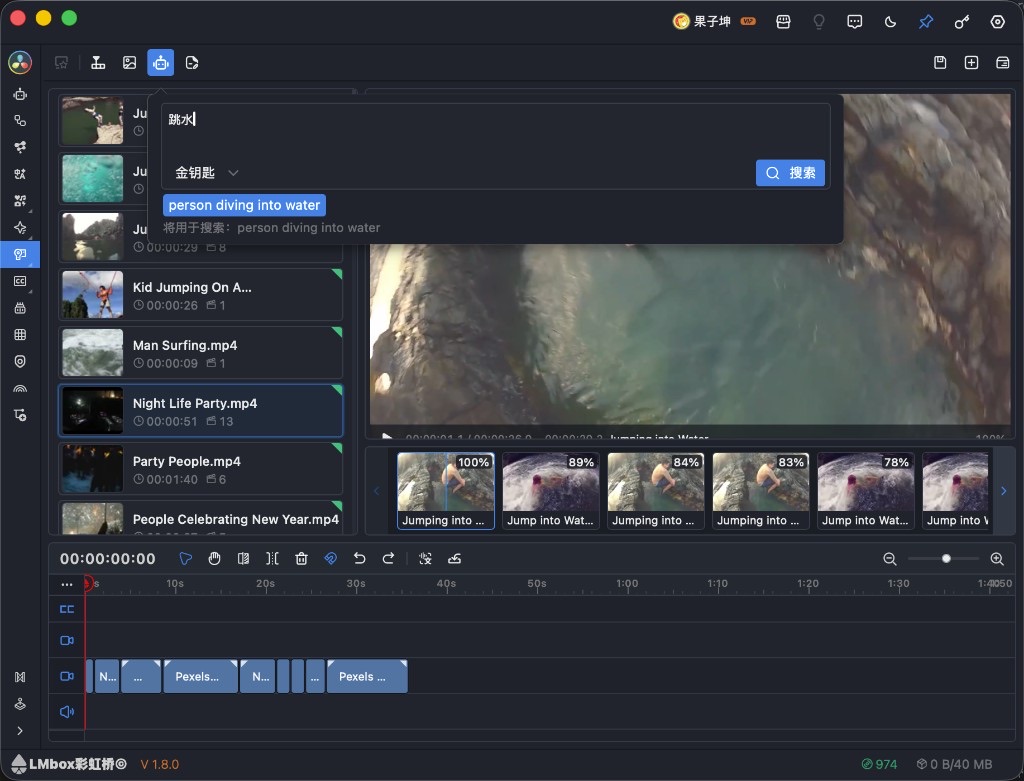
Figure: Type "diving" → semantic understanding → shots related to diving, ordered by match score.
Chinese descriptions depend on the model you choose (the official cloud or a model you have set up locally). If understanding fails, rephrase or switch the model. "AI search" in the top bar is this entry. See Three ways to search in the guide.
4. Find similar pictures (similar shot suggestions)
Select a shot, or use "Search similar by picture", and the tool lists other shots that look alike. It suits "this one is good, give me a few more with the same feel".
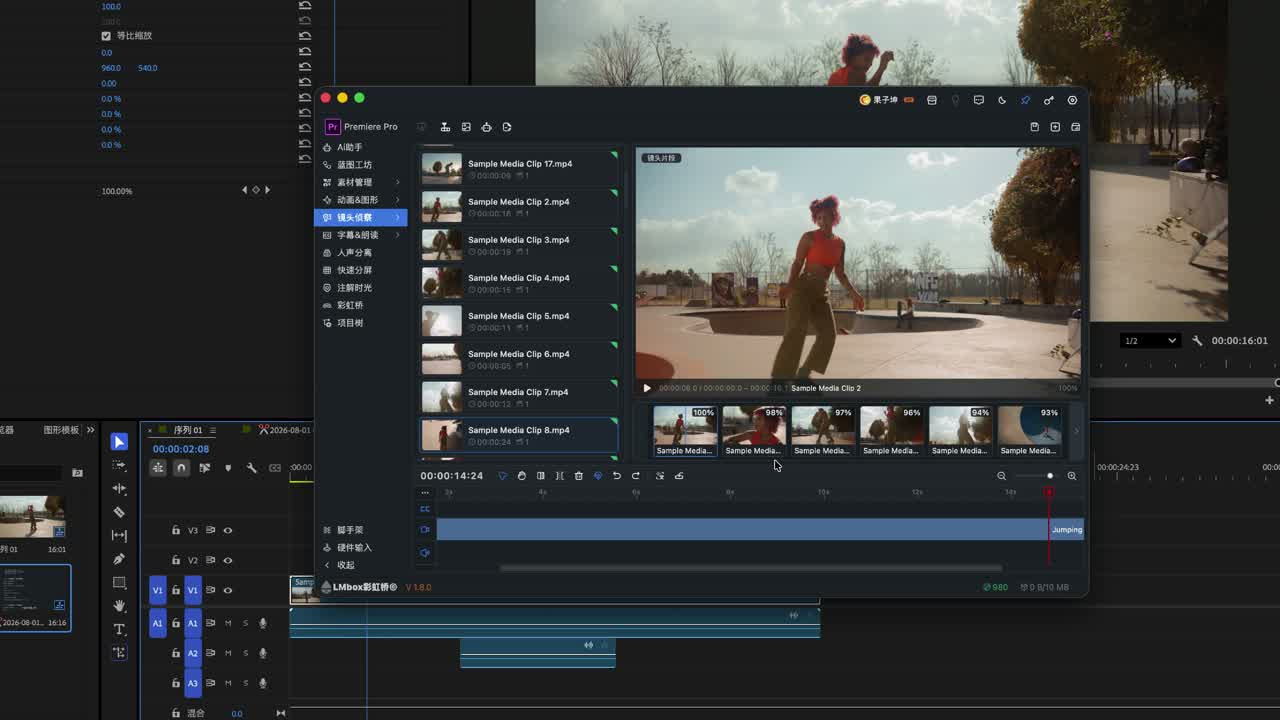
Figure: One night shot brings out similar night and nightclub pictures.
Product note
Searching by picture or similarity finds pictures with a similar feel. It does not identify a person or object like an ID check.
How results get onto the timeline
- Import directly: right-click a shot in the strip → "Import to timeline" (it lands at the host playhead)
- Arrange first, then import: right-click → "Add to assembly timeline", or drag onto it, sort things out, then "Import to editing app" to send them in bulk
- Captions: the assembly timeline can "Generate captions"; with in/out points set, it can recognize only the range
Common tools on the assembly timeline: select, hand, ripple trim, split, delete, snap, generate captions, import to editing app. A clip's right-click menu also offers caption recognition, split audio, link / unlink and color labels; the ruler's right-click can set the in point / out point or clear them. For the icons and the full menus see Right-click menus in the guide.
The assembly timeline is public for the first time, and the feel will keep improving. Please send feedback by ticket.
When to match other footage by shot
Typical case: you have a movie-commentary cut and the full original film, and want to line up the original clips shot by shot. In the left video list, right-click "Match other footage by shot" (it skips itself). In the order of the current source shots, the tool finds the most similar shot in the other sources and drops them on the assembly timeline.
Assemble from script: open it from the top bar, paste a storyboard table or voice-over script, search in bulk and lay the results out on the assembly timeline, then import them into the editing app in bulk. In essence it is "find shots by description in bulk, then place them on the timeline".
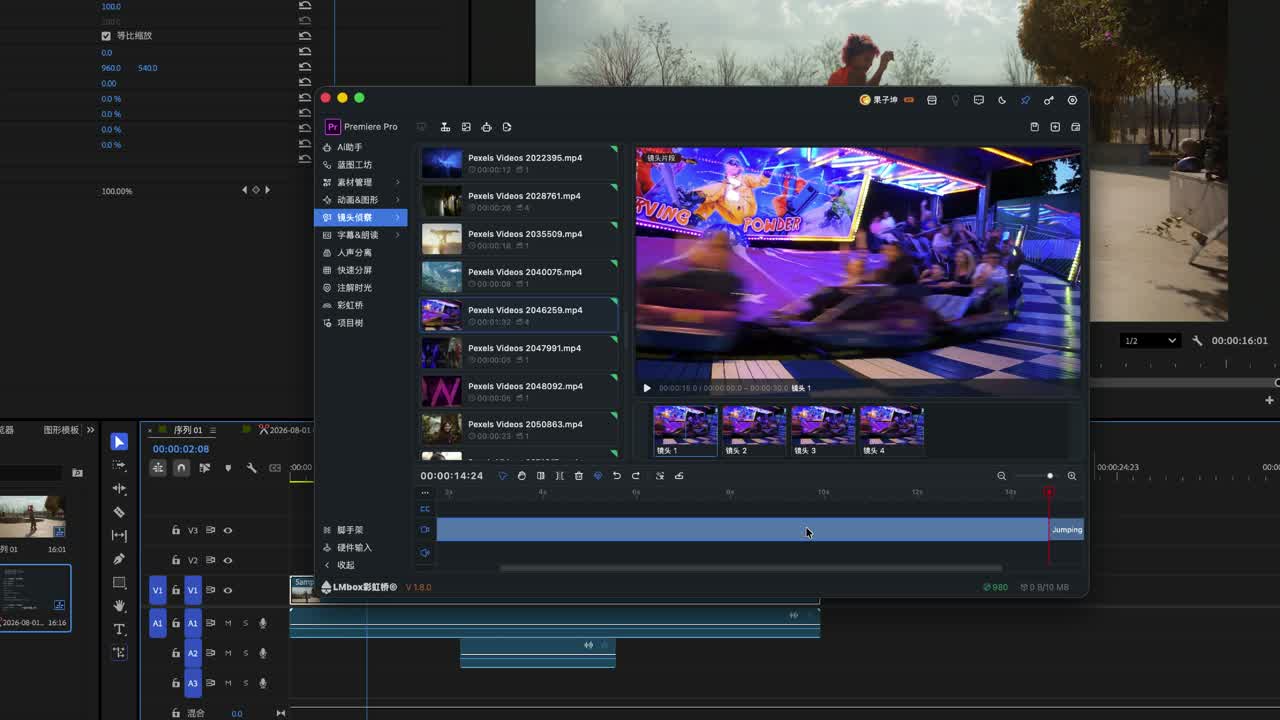
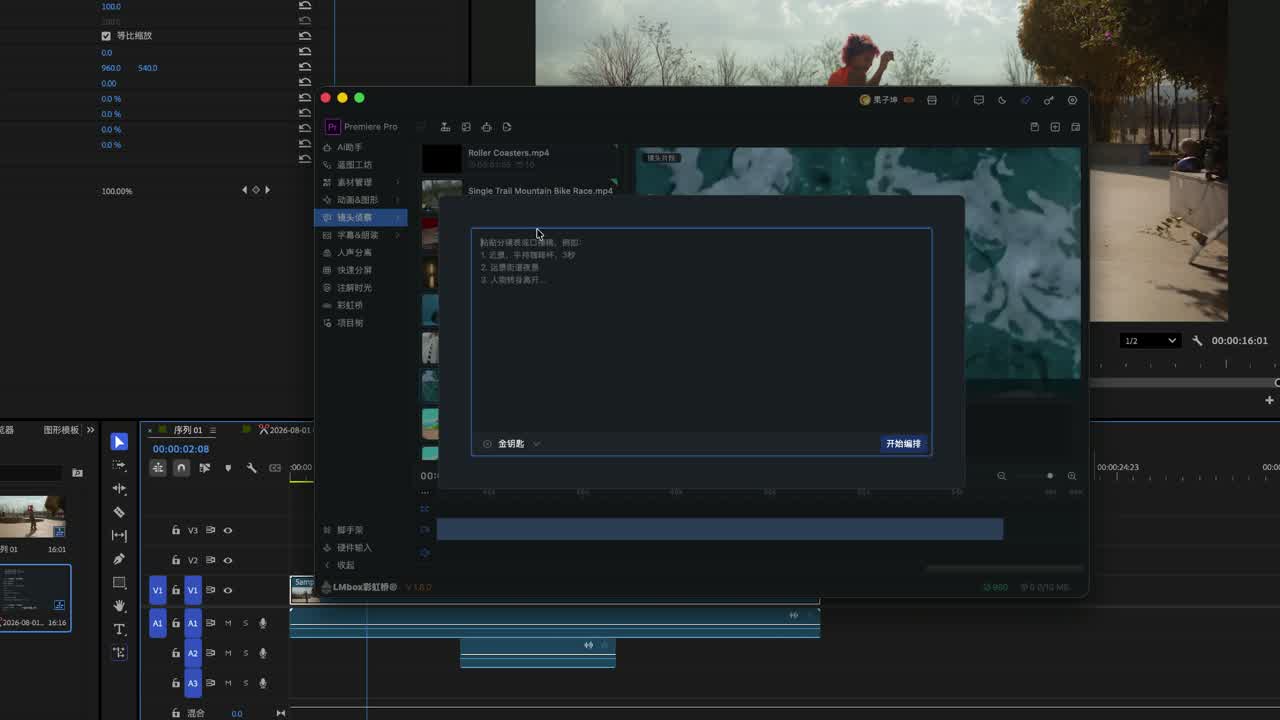
Figure: Matching a finished cut and assembling from a script are advanced uses. A full class may follow later.
What else changed in the same release
| Update | Notes |
|---|---|
| Sidebar group / scatter | Group folds the common tools into a second-level menu; scatter lists everything and lets you hide and sort |
| Name Translate (formerly Fusion translate) | Now part of "Name Translate" in the sidebar; see Name Translate |
| Talking rough cut and more | 1.6→1.8 also has rough-cut upgrades and LUT fixes; for rough cuts see Talking rough cut; version details are in the desktop release notes |
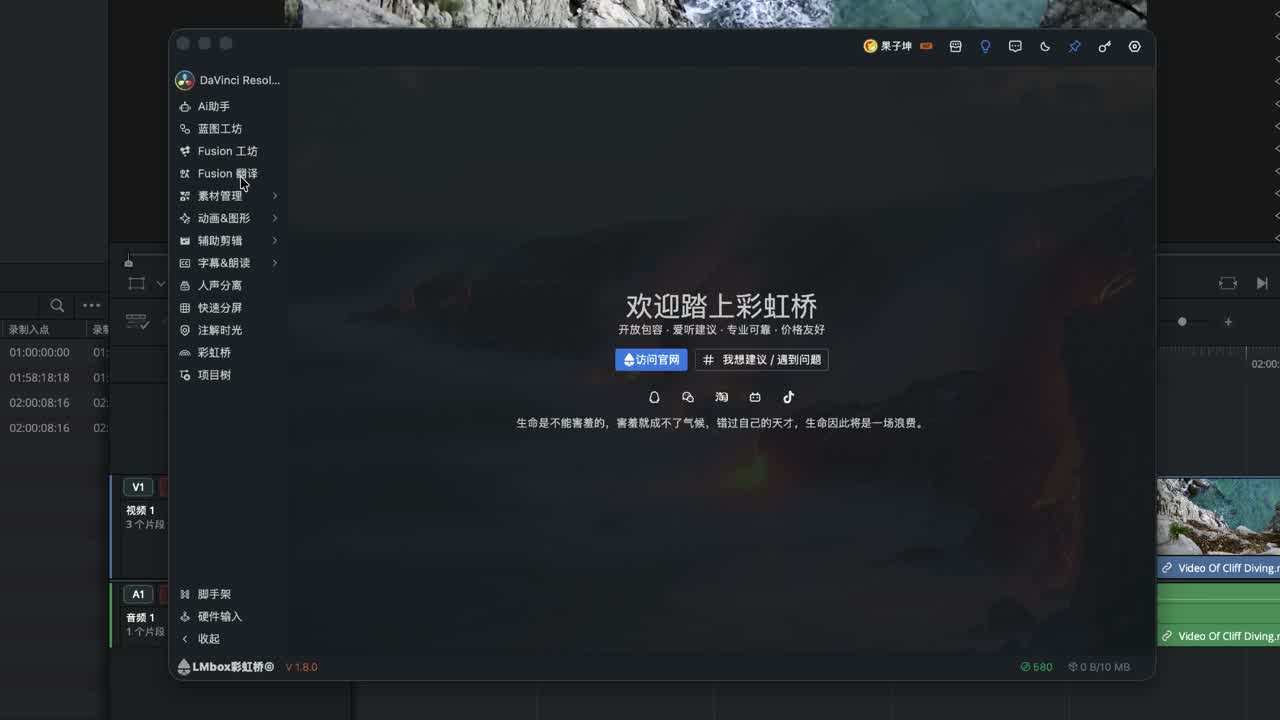
Figure: The old Fusion translate screen. It is now part of "Name Translate" in the sidebar; follow the Name Translate guide.
FAQ
What is LmBox Bridge Shot scout?
An AI footage search tool under Edit assist: find clips in your local shot library by description, reference picture or timeline frame, and import them into DaVinci Resolve / Premiere.
How do I use AI to find shots in DaVinci Resolve?
Connect the extension → open Shot scout → build the search index → search by description or "Search by timeline frame" → import, or assemble and then import.
How do I search similar shots in Premiere?
The same as DaVinci Resolve. After you grab a frame and search, pick by similarity, or use "Find similar pictures" on one result.
How is description search different from searching a video by picture?
Description search uses semantic understanding first and then searches. Search by picture or similarity uses a reference picture to find shots with a similar feel. You can combine both.
When does "Match other footage by shot" fit?
Lining up a commentary cut with the original, or a finished cut with "same content, different file" in your library. It is not a plain keyword search on file names.
What are the limits of Shot scout?
The index must be built first. Grabbing frames and importing need the extension. Chinese descriptions depend on the model you set up. It does not replace effects, transitions or complex compositing, and the assembly timeline is still being polished.
Further reading
- Shot scout (Lab guide) — screen areas, top bar icons, right-click menus and the FAQ are authoritative there
- Lab features overview
- Talking rough cut — word-level rough cut, also under Edit assist
- Motion graphics (OGraf / Lottie) — an OGraf / Lottie library you can import into DaVinci Resolve
- Split view guide · Blog: Split view
- LmBox Bridge Core (host connection)
- Install the desktop app
- Name Translate
- Desktop release notes
- Demo video on Bilibili